> Reading time: ~5 minutes
> Audience: Dynamics 365 developers, Power Platform makers
> Stack: PCF · React · libphonenumber-js · Fluent UI
The Problem with the Default Phone Field
If you’ve ever used the out-of-the-box phone field in Dynamics 365, you know the drill:
- No country code picker — users type
+91,0091,91, or just9820...and you never know which - No validation — junk data gets saved silently
- No quick actions — to call someone you copy the number, switch apps, paste, dial
- No flags — just a plain text box that looks the same everywhere
For a mobile-first sales team managing leads across India, the US, the UK, and the UAE, this is a daily friction point.
So we built MobilePhonePCF — a drop-in replacement that solves all of this.
What It Does

In one compact control you get:
| Feature | How it works |
|---|---|
| Country flag picker | 250+ countries, searchable by name, ISO code, or dial code |
| Real flag images | PNG flags from flagcdn.com — no broken emoji on Windows |
| E.164 validation | libphonenumber-js validates as you type, stores +919820183488 |
| Preferred countries | Your top countries pinned to the top of the picker |
| Radial action menu | Tap the ⋯ button to reveal a fan of action buttons |
| Call | Opens native phone dialer + creates a D365 Phone Call activity |
| SMS | Opens native SMS app with number pre-filled |
| Opens WhatsApp app on mobile, WhatsApp Web on desktop | |
| Microsoft Teams | PSTN call via Teams deep link |
| Copy | Copies E.164 number to clipboard |
| Click to dial | In read mode, tap the number to dial directly |
The Country Picker
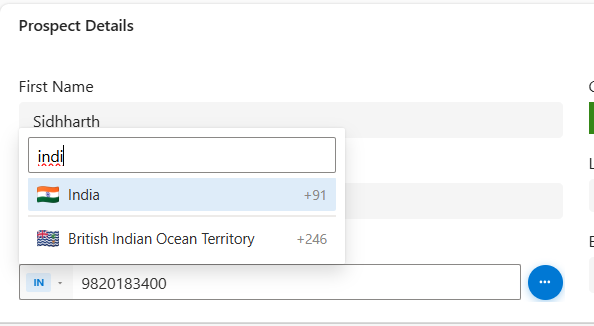
The picker has three sections:
- Preferred countries at the top — configurable per your business (we use IN, US, GB, AE, SG)
- A thin divider
- All other countries alphabetically below
Type anything in the search box — country name, ISO code (IN), or dial code (+91) — and it filters instantly.
Flag images load from flagcdn.com as PNGs (not emoji). On Windows, flag emoji characters display as two-letter text like “IN” or “US” — the image approach works everywhere including D365 web and the PowerApps mobile app.
If the CDN is unreachable (org network restrictions), it gracefully falls back to a styled blue badge with the ISO code.
Phone Validation
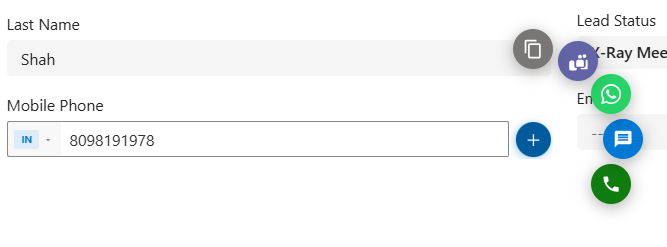
As you type, libphonenumber-js validates the number against the selected country’s rules.
- Green state → number is valid → saved as E.164 (
+919820183499) - Red state → invalid format → field does not update D365 until corrected
- Empty → no validation, no save
The E.164 format in the field means your integrations, automations, and Power Automate flows always get a clean, consistent value.
The Radial Action Menu
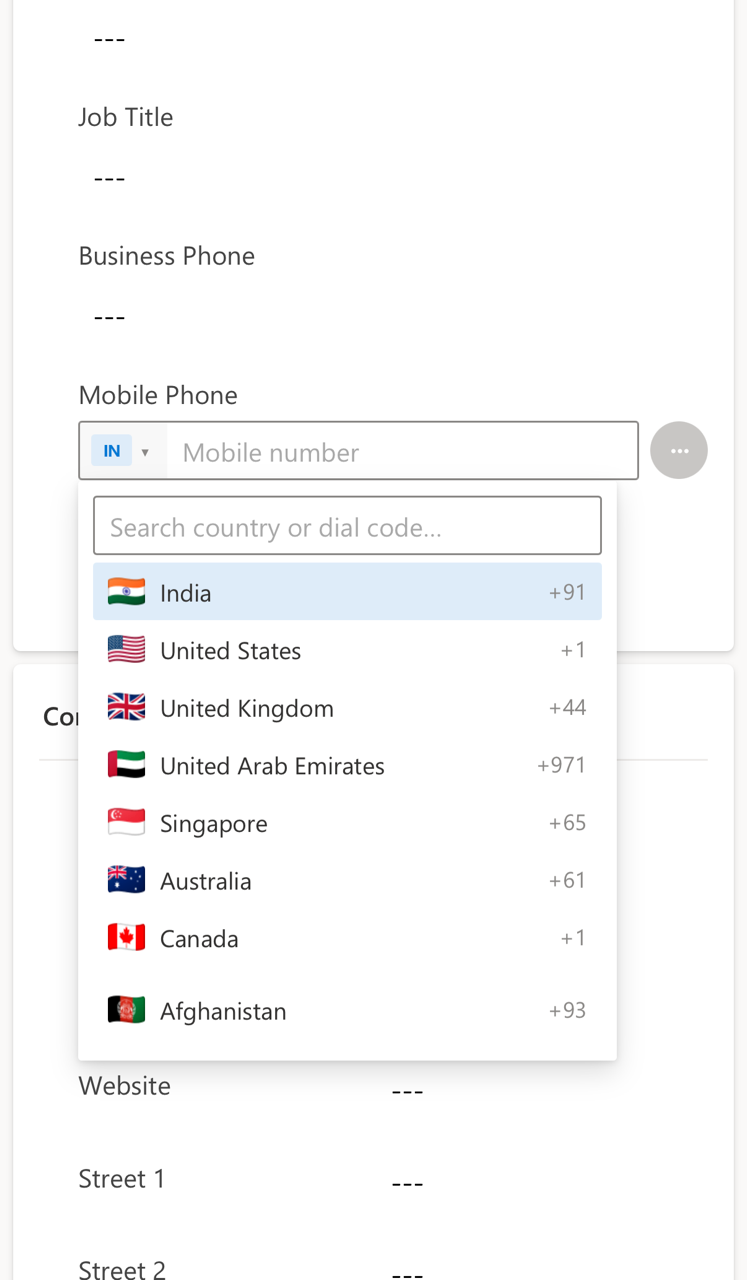
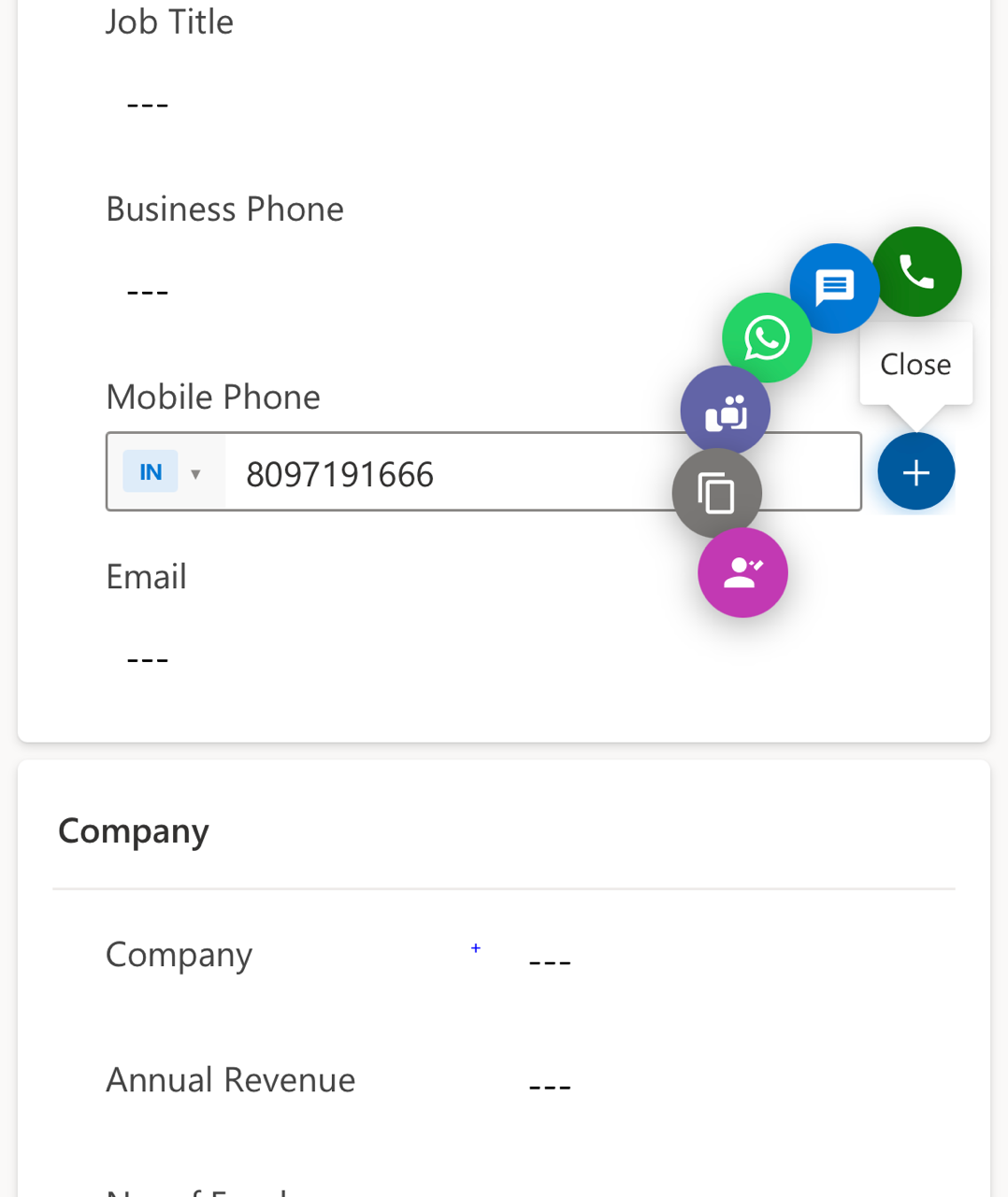
Tap the ⋯ button and a fan of action buttons animates out. Up to 6 actions: Call, SMS, WhatsApp, Teams, Copy, Find Contact.
Each button is independently enable/disable-able via form configuration — hide the ones you don’t need.
Viewport-aware positioning: The arc direction adapts based on where the trigger sits on screen. If it’s on the right edge, buttons fan left. If on the left, they fan right. This prevents buttons from going off-screen on mobile.
Action Button Behaviour
| Button | Mobile (PowerApps app) | Desktop browser |
|---|---|---|
| Call | Opens native phone dialer | Opens native dialer |
| SMS | Opens native SMS app | Opens SMS handler |
Opens WhatsApp app via wa.me link |
Opens WhatsApp Web in new tab | |
| Teams | Opens Teams PSTN call | Opens Teams call in new tab |
| Copy | Copies E.164 to clipboard | Copies E.164 to clipboard |
| Click number | Opens dialer (read mode) | Opens dialer (read mode) |
Read Mode
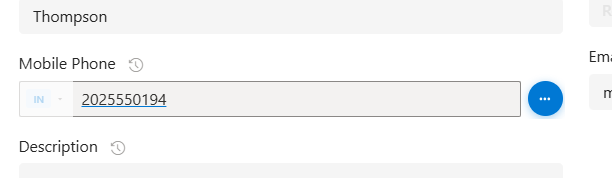
When the form is in read mode or the field is disabled, the number renders as a tappable link. One tap opens the dialer — no menus, no extra steps. This is the “click to dial” pattern that mobile CRM users expect.
Installation — 3 Steps
1. Import the solution
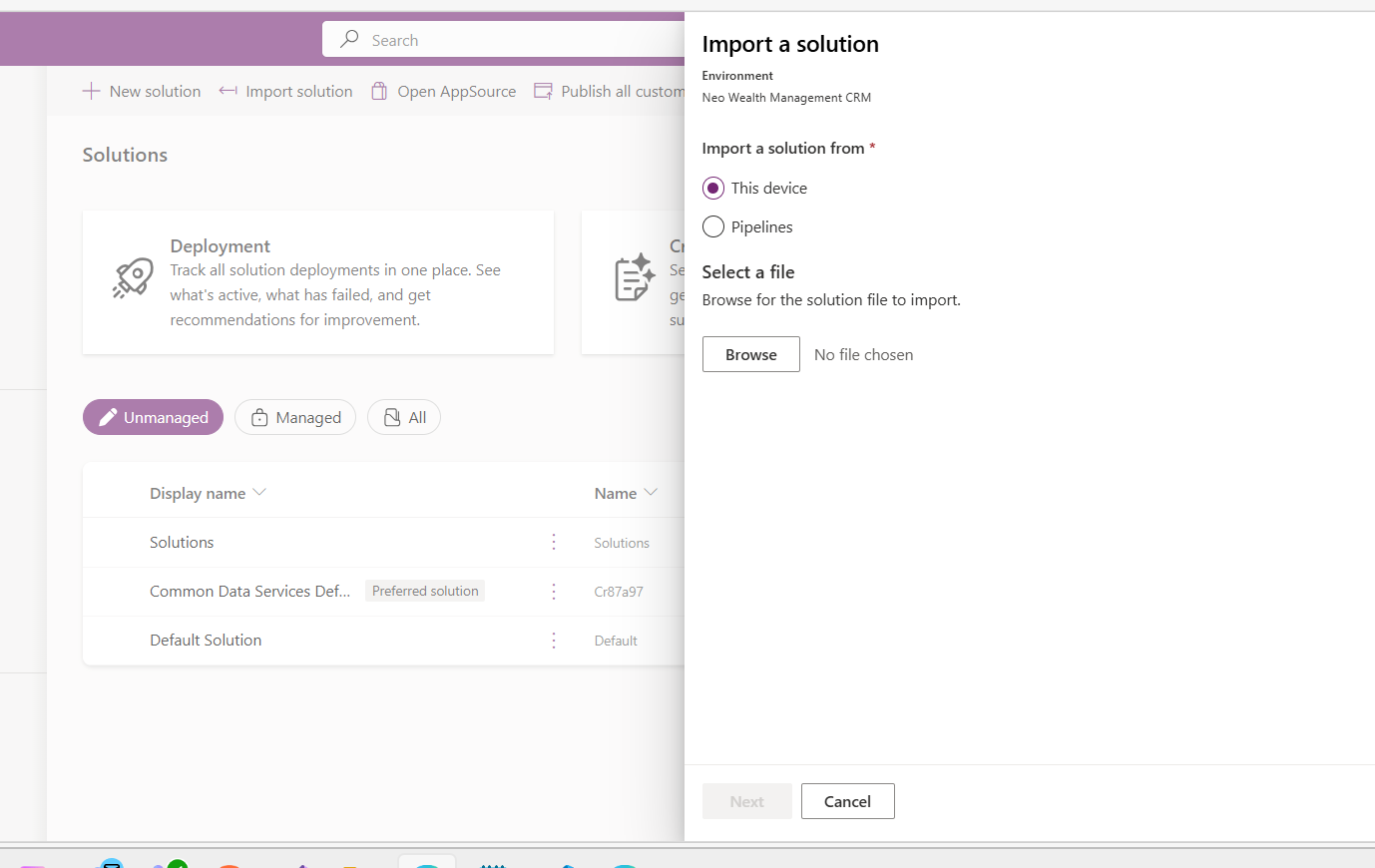
Download MobilePhonePCF_Managed.zip and import it at make.powerapps.com → Solutions → Import solution.
2. Add to a form
Open any form in the editor (Contact, Lead, Account — wherever your phone field lives).
Select the phone field → Components → + Component → find Mobile Phone Control → Add.

3. Configure
Map the bound property to your field and set your preferred countries:
| Property | Example value | What it does |
|---|---|---|
| Default Country | IN |
Country shown on first load |
| Preferred Countries | IN,US,GB,AE,SG |
Countries pinned to top of picker |
| Allowed Countries | (blank = all) | Restrict picker to specific countries |
| Enable WhatsApp | Yes | Show/hide WhatsApp button |
| Enable Teams | Yes | Show/hide Teams button |
| Popup Radius | 80 |
How far buttons fan out (px) |
Save → Publish → done.
Under the Hood — Technical Notes
Why ReactDOM.createPortal?
D365 form cells have overflow: hidden. Any absolutely-positioned overlay — action buttons, dropdowns, toasts — gets clipped at the cell boundary. We render all overlays into document.body via React portals, then position them with position: fixed using getBoundingClientRect() for pixel-accurate placement.
Why anchor-click instead of window.open?
window.open(url, "_blank", "noopener,noreferrer") — passing a features string — tells browsers to open a popup, not a tab. D365’s parent frame intercepts that popup request and navigates same-window, while the browser also opens a tab. You get two URLs opening. The fix is a programmatic anchor click (<a target="_blank">), which browsers treat as a standard link navigation and D365 cannot intercept.
WhatsApp on mobile
whatsapp:// scheme is blocked in PowerApps’ managed WebView. api.whatsapp.com opened via location.href navigates the D365 frame. The only approach that reliably opens the WhatsApp app is https://wa.me/ opened via window.open(_blank) — PowerApps forwards _blank links to the system browser, which handles the Universal Link and launches WhatsApp.
Get It
- GitHub: MobilePhonePCF
- PCF Gallery: pcf.gallery
- Publisher: Quantril · prefix
qtrl· MIT License
# Build from source
git clone https://github.com/Quantril/MultiChannelMobilePCF.git
cd MobilePhonePCF
npm install
npm run build
.\build-solutions.ps1
Final Thoughts
The goal was simple: make the phone field actually useful for a mobile sales team. Real flags, clean validation, one-tap actions, and no clipping issues inside D365 forms.
If you’ve been living with the default text box, give this a try — import takes under a minute and the difference is immediate.
Questions or issues? Open a GitHub issue or reach out in the Power Platform community forums.
Built with PCF · React 16 · Fluent UI v8 · libphonenumber-js · MIT License

