Reading time: ~5 minutes
Audience: Dynamics 365 developers, Power Platform makers
Tech Stack: PCF · React · Fluent UI · libphonenumber-js
Managing phone numbers inside Dynamics 365 is something every sales and support team deals with daily. Yet the default phone field experience is still extremely basic.
No country picker. No proper validation. No quick actions. No click-to-dial experience.
For teams working across multiple countries, this creates inconsistent data, wasted clicks, and unnecessary friction in day-to-day CRM usage.
To solve this, we built MobilePhonePCF — a smart mobile phone control for Dynamics 365 and Power Apps that brings country flags, international validation, and multi-channel actions into a single modern component.
The Problem with the Default Phone Field
The standard Dynamics 365 phone field works as a plain text input.
That means users can enter phone numbers in almost any format:
+91 9820xxxxxx0091 9820xxxxxx91xxxxxxxxxx9820xxxxxx
Over time, this leads to inconsistent data across records and unreliable integrations.
There are also no built-in quick actions for:
- Calling
- SMS
- Teams
- Copy-to-clipboard
Sales users frequently end up:
- Copying the number
- Switching apps
- Pasting manually
- Dialing externally
For mobile-first organizations, this becomes a major usability issue.
Introducing MobilePhonePCF

MobilePhonePCF is a drop-in replacement for the standard phone field.
It combines:
- International country support
- Real-time validation
- Click-to-dial
- Multi-channel communication shortcuts
- Mobile-friendly UX
All directly inside Dynamics 365 forms.
Features at a Glance
| Feature | Description |
|---|---|
| Country flag picker | 250+ searchable countries |
| Real flag images | PNG flags for consistent rendering |
| E.164 validation | Stores clean international numbers |
| Preferred countries | Pin frequently-used countries |
| Radial action menu | Quick-access communication actions |
| Call support | Open native dialer instantly |
| SMS support | Launch SMS app directly |
| WhatsApp integration | Opens app or WhatsApp Web |
| Microsoft Teams support | PSTN call via Teams deep link |
| Copy to clipboard | Copy formatted number instantly |
| Click-to-dial | Tap number directly in read mode |
Smart Country Picker
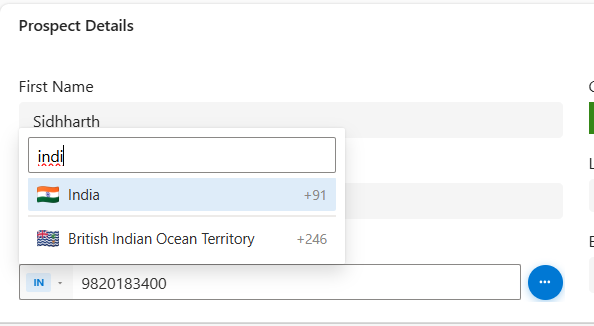
The control includes a fully searchable country picker with:
- Country names
- ISO codes
- Dial codes
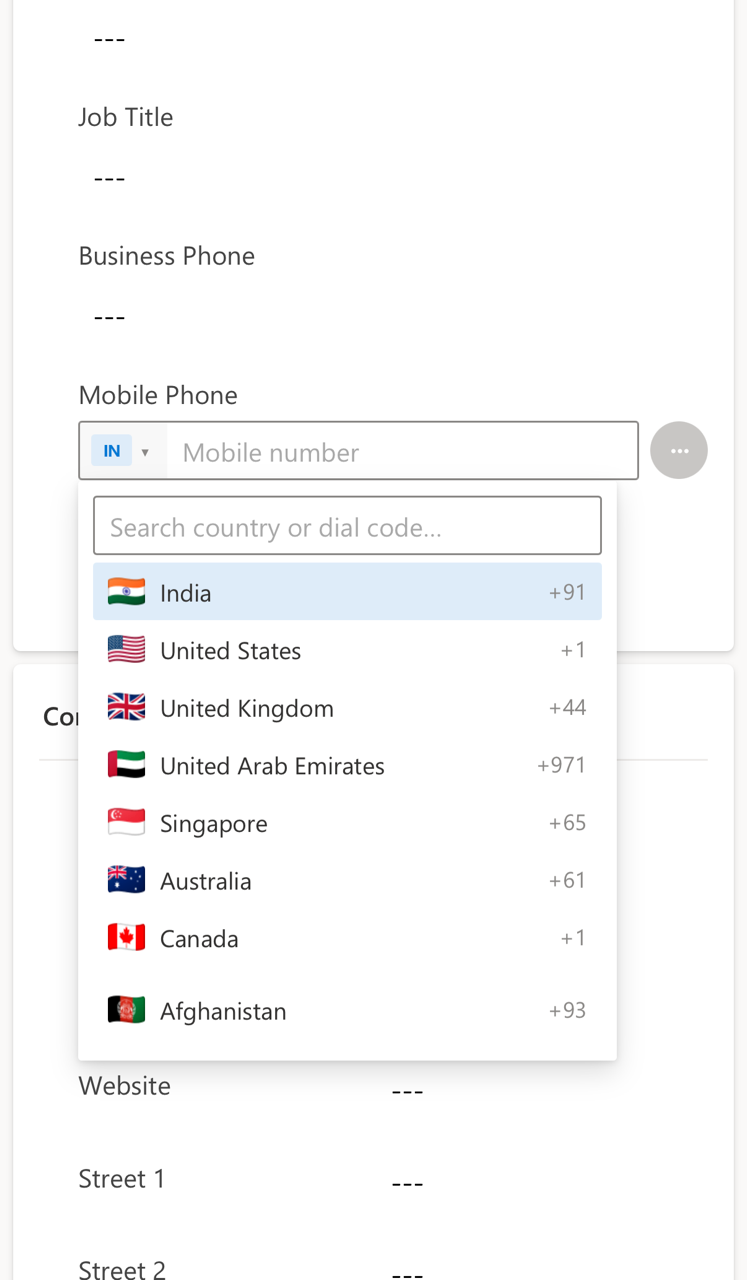
The country list is divided into:
- Preferred countries
- All countries alphabetically
This makes frequent selections much faster for global sales teams.
Example preferred list:
- IN
- US
- GB
- AE
- SG
Unlike emoji flags, which render inconsistently across platforms, the control uses PNG flag images from flagcdn.com to ensure a reliable experience across:
- Dynamics 365 Web
- Power Apps Mobile
- Windows devices
If external CDN access is blocked, the component gracefully falls back to styled ISO badges.
Real-Time E.164 Phone Validation
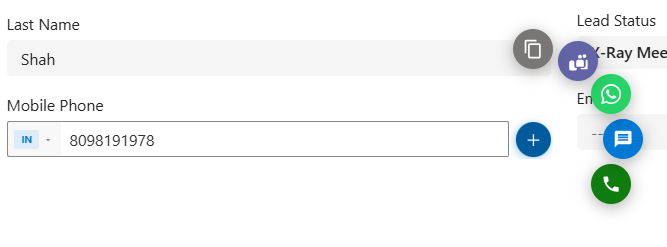
Phone validation is powered by libphonenumber-js.
As users type:
- Valid numbers are accepted and formatted
- Invalid formats are highlighted immediately
- Incorrect values are prevented from updating Dataverse
Valid numbers are stored in proper E.164 format:
+919820183499
This ensures:
- Consistent CRM data
- Cleaner integrations
- Reliable Power Automate workflows
- Easier downstream processing
Radial Action Menu
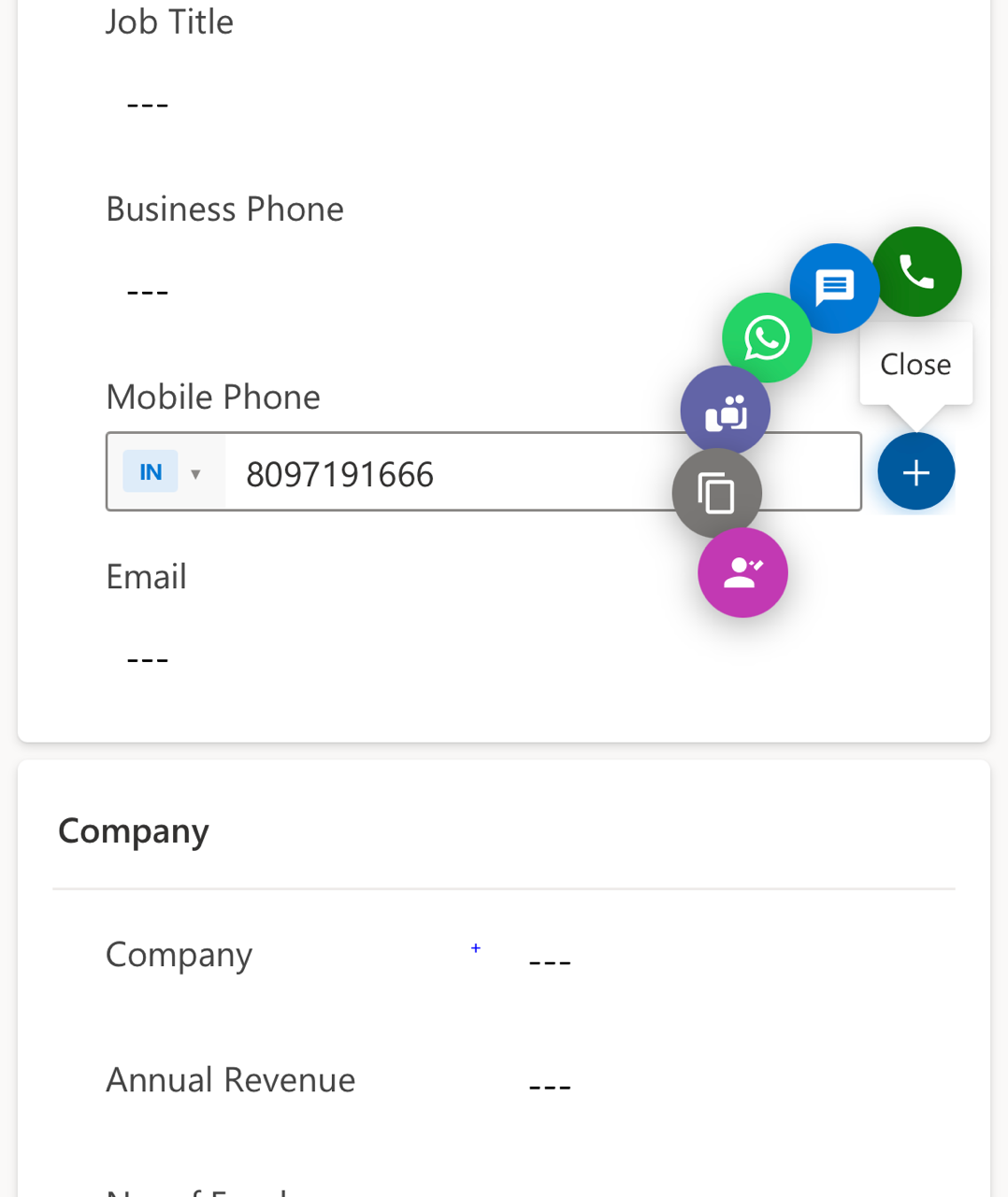
One of the most useful parts of the control is the radial quick-action menu.
Clicking the ⋯ button expands a fan-style menu with actions such as:
- Call
- SMS
- Teams
- Copy
- Find Contact
Each action can be independently enabled or disabled through configuration.
Mobile-Friendly Smart Positioning
The radial menu is viewport-aware.
That means:
- Buttons automatically fan left or right
- The menu adapts based on screen position
- Controls never overflow off-screen on mobile devices
Examples
Multi-Channel Action Support
| Action | Mobile Experience | Desktop Experience |
|---|---|---|
| Call | Opens native dialer | Opens desktop dialer |
| SMS | Opens SMS app | Opens SMS handler |
| Opens WhatsApp app | Opens WhatsApp Web | |
| Teams | Opens Teams PSTN call | Opens Teams in browser |
| Copy | Copies E.164 value | Copies E.164 value |
Click-to-Dial in Read Mode
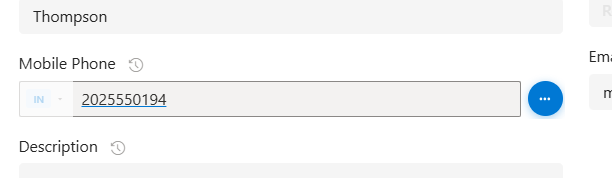
When the form is read-only or disabled, the number becomes a clickable/tappable link.
Users can directly:
- Tap the number
- Open the dialer
- Start the call instantly
This creates the modern “click-to-dial” experience users expect from mobile CRM applications.
Installation — Quick 3-Step Setup
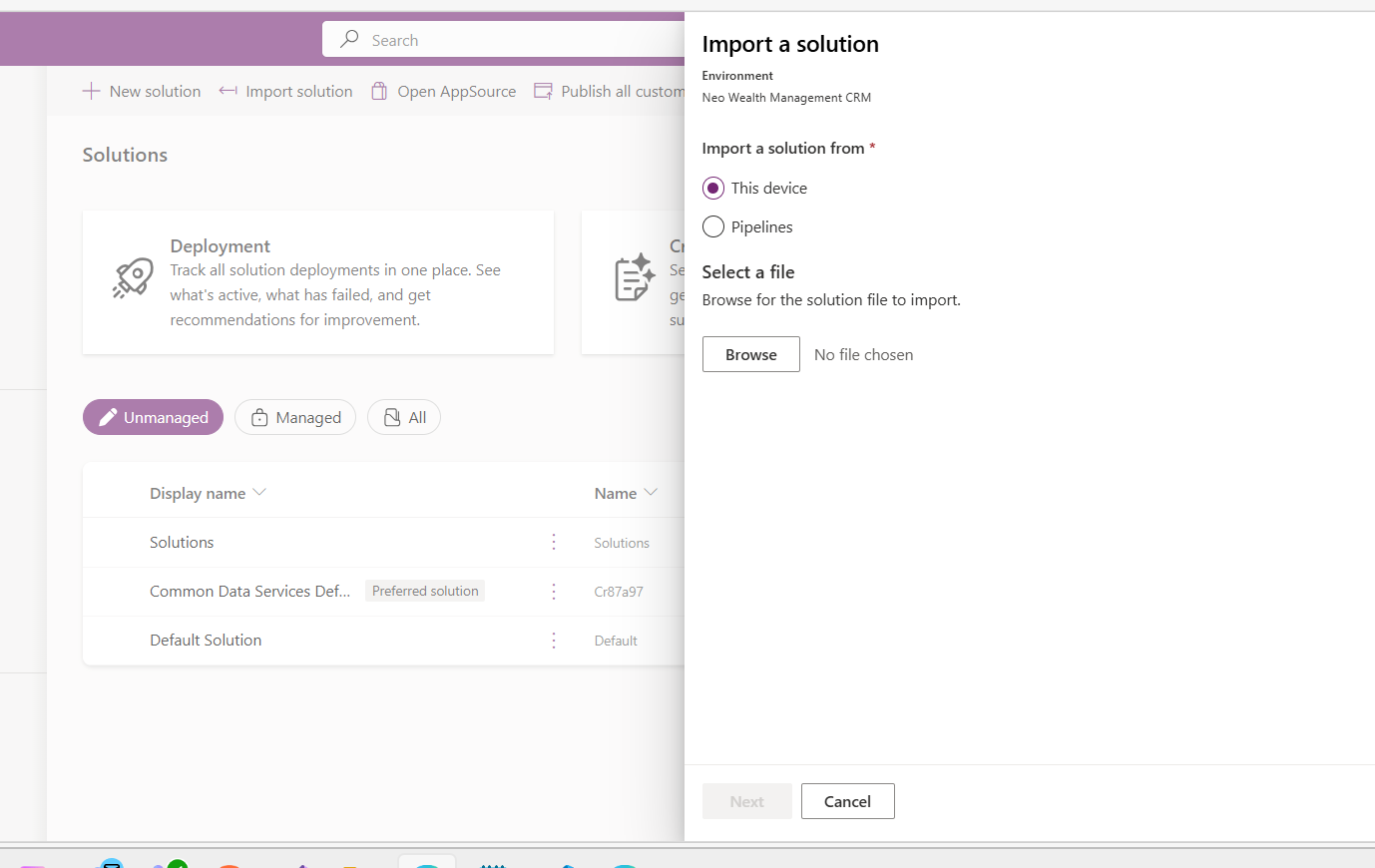
Step 1 — Import the Solution
Download the managed solution and import it into Power Apps.
Path:
make.powerapps.com → Solutions → Import Solution
Step 2 — Add the Control to a Form
Open any form:
- Contact
- Lead
- Account
- Custom entity
Then:
- Select the phone field
- Open Components
- Click + Component
- Add Mobile Phone Control

Step 3 — Configure the Control
Set your desired configuration values.
| Property | Example | Purpose |
|---|---|---|
| Default Country | IN | Default selected country |
| Preferred Countries | IN,US,GB,AE,SG | Pin countries at top |
| Allowed Countries | Blank = all | Restrict country list |
| Enable WhatsApp | Yes | Toggle WhatsApp action |
| Enable Teams | Yes | Toggle Teams action |
| Popup Radius | 80 | Distance of radial buttons |
Save and publish the form.
Done.
Technical Notes
Why React Portals?
Dynamics 365 form cells use:
overflow: hidden;
This clips dropdowns and floating action menus.
To avoid clipping, all overlays are rendered into document.body using:
ReactDOM.createPortal()
Combined with:
position: fixedgetBoundingClientRect()
This ensures accurate overlay positioning across desktop and mobile.
Why Anchor Click Instead of window.open()?
Using:
window.open(url, "_blank", "noopener,noreferrer")
can cause duplicate navigation behavior inside Dynamics 365 frames.
The solution uses programmatic anchor clicks instead, which browsers treat as standard navigation events and Dynamics cannot intercept incorrectly.
WhatsApp Deep Linking Challenges
Inside Power Apps mobile WebView:
whatsapp://links are blockedapi.whatsapp.comcan hijack the current CRM frame
The most reliable solution was:
https://wa.me/
opened via _blank, which correctly launches the native WhatsApp app.
Get the Control
GitHub Repository
MobilePhonePCF GitHub Repository
PCF Gallery
Build from Source
git clone https://github.com/Quantril/MultiChannelMobilePCF.gitcd MobilePhonePCFnpm installnpm run build.\build-solutions.ps1
Final Thoughts
The goal behind MobilePhonePCF was simple:
Make the phone field actually useful for modern sales teams.
With:
- proper international validation,
- real country flags,
- one-tap communication actions,
- mobile-friendly UX,
- and clean Dataverse storage,
the control dramatically improves the phone number experience inside Dynamics 365.
If your users still rely on the default textbox for phone numbers, this upgrade makes an immediate difference.


