Introduction
If you’ve worked with Dynamics 365, you already know the struggle of handling URL fields. They’re great for storing links, but when those links come from integrations or backend logic, they often look messy — full of encodings, query strings, and random parameters.
For end-users, these long links are not only hard to read but also unfriendly to click. They create confusion and reduce trust.
That’s why I created a small but powerful PCF (PowerApps Component Framework) control called the Hyper Link Button.
Instead of showing long, ugly links, it replaces the URL field with a clean, clickable button that carries a simple label.
Watch the full tutorial here:
In this blog, we’ll explore:
- Why Hyper Link Button exists
- Where you can use it
- How to install it
- Step-by-step guide to configure it in Dynamics 365
Why Hyper Link Button?
Dynamics 365 allows you to add URL fields to tables like Account, Contact, or even your custom entities.
Short links look fine.
But long URLs with encoded parameters look like this:
https://example.com/app/page?id=12345&session=ABCD1234%20XYZ&encoded=true...
This not only clutters the form but also makes users unsure whether it’s safe to click.
With Hyper Link Button, you can hide the technical details of the link and show a neat button instead.
For example, instead of a big messy link, the user sees a button labeled “Open Account Page” or “View Details”.
It improves usability, readability, and trust.
Where to Use It
This control is most useful when:
- Links are updated automatically through integrations.
- URLs are generated by backend logic.
- You don’t want users to edit or see sensitive parts of the link.
- You want a more user-friendly interface in your Model-Driven Apps.
How to Install Hyper Link Button
- Visit the GitHub repo: HyperLinkButton by Quantril.
- Go to the Releases section and download the latest Managed Solution.
- Open make.powerapps.com and select your environment.
- Navigate to Solutions → Import Solution → upload the file.
That’s it! The control is now ready to use in your environment.
How to Configure It in Dynamics 365
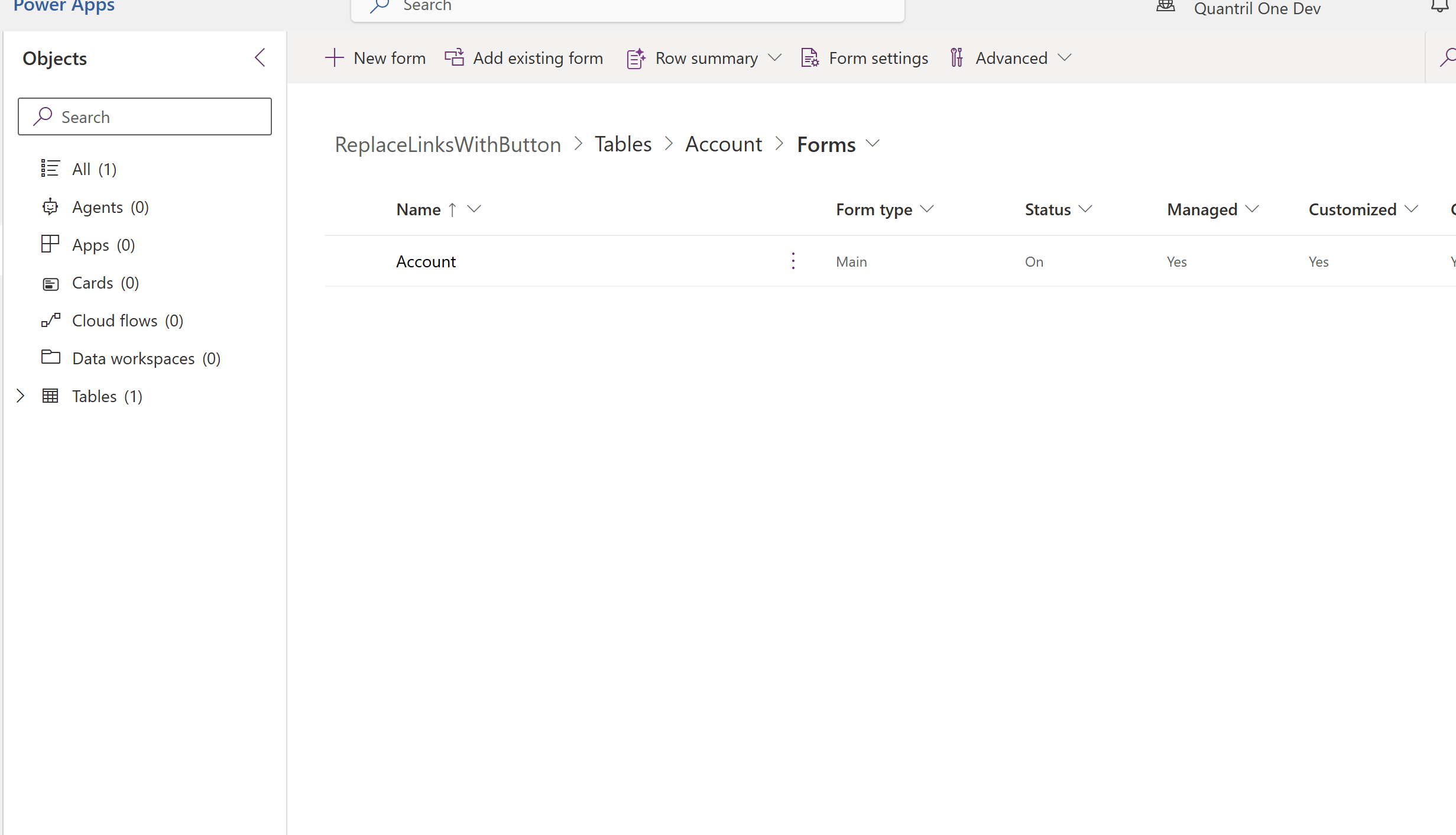
- Open or create an Unmanaged Solution (recommended for tracking changes).
- Example: create one called ReplaceLinksWithButton.
- Add the table and form where your URL field exists.
- Example: Account → Main Form.
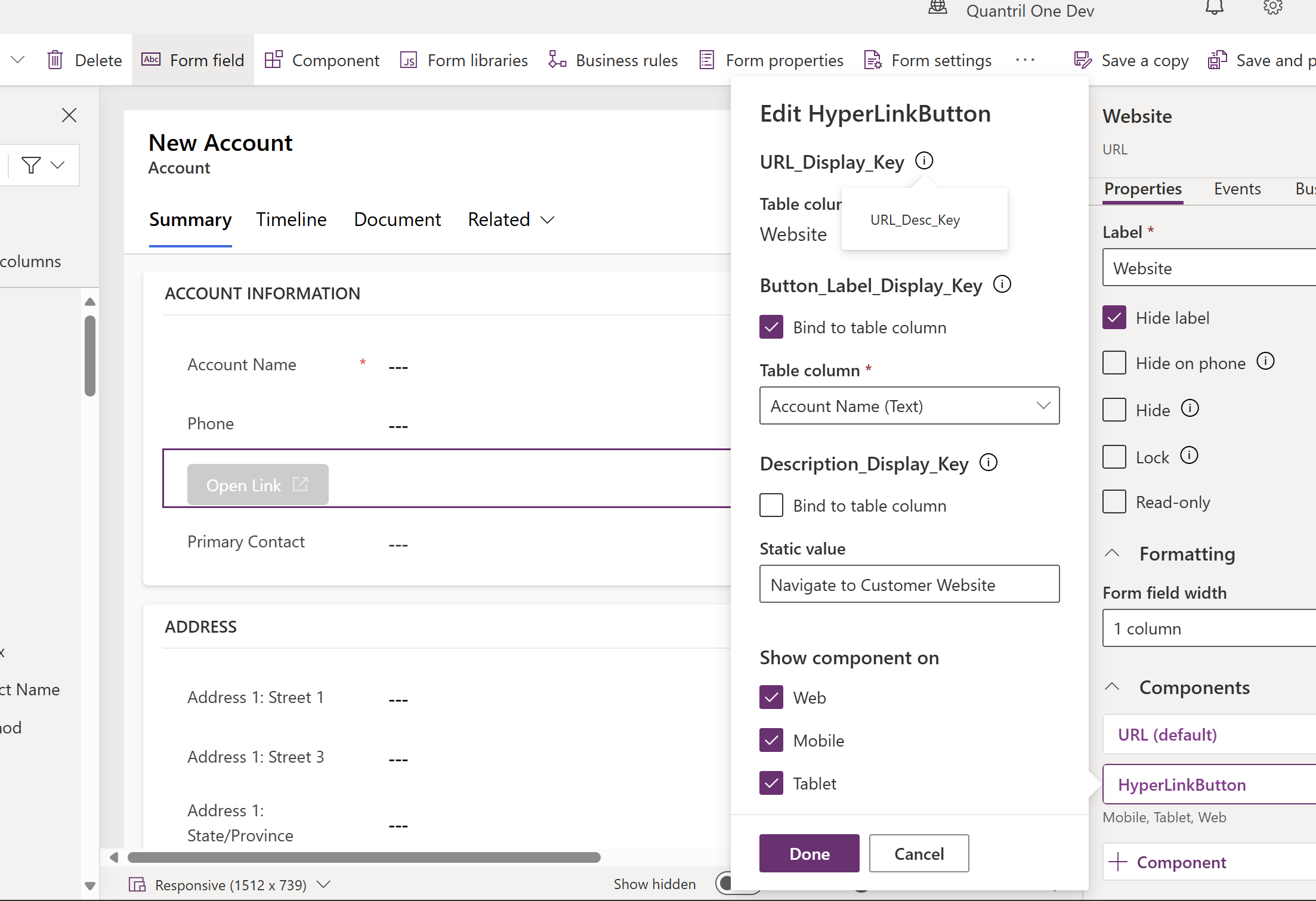
- Locate your URL field (e.g., Website).
- Go to Components → Add Control → select Hyper Link Button.
- Configure the control:
- Label → text shown on the button (e.g., Account Name).
- Description → tooltip shown on hover (e.g., Website URL).
Save, publish, and refresh your app.
Now, instead of a long messy URL, you’ll see a clean button that opens the link.
If the URL is empty, the button is disabled — avoiding confusion.
Demo Example
Before:
A field full of unreadable text → https://longurl.com/path?x=123&y=456...
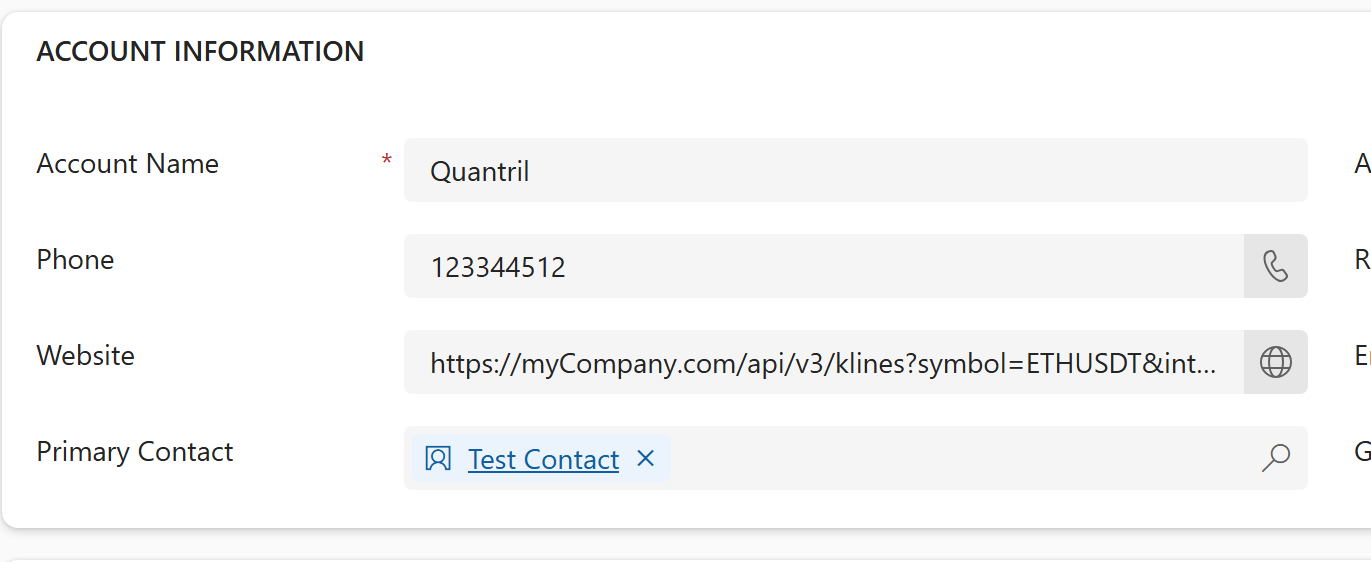
After:
A neat button →

Video of Demo
Conclusion
The Hyper Link Button PCF control may be small, but it solves a real usability issue in Dynamics 365.
By replacing long, unreadable URLs with simple buttons, it improves the user experience and makes your forms look cleaner.
If you’d like to try it out, head over to the GitHub repo, install it, and start replacing those messy links today.
💬 I’d love to hear your feedback — drop a comment below and share how you’re planning to use this control in your projects.
👉 For more tutorials on Dynamics 365, PCF controls, and Power Platform, follow The Tech Burst!


Hey @Friyank Parikh, thank you for the great work. I had the following questions:
Can we change the colour of the button?
Can we resize the button or change it relative position?
I presume that these possible modifications can only be done through code?
LikeLike
Yes, we can change it, we can clone the code from repository, build and modify as per your request.
LikeLike
Hey @Friyank Parikh, thank you for the great work. I had the following questions:
Can we change the colour of the button?
Can we resize the button or change it relative position?
I presume that these possible modifications can only be done through code?
LikeLike