In this blog post, I’ll guide you through the process of installing and using the Amount Value or Number to Words PCF Control.
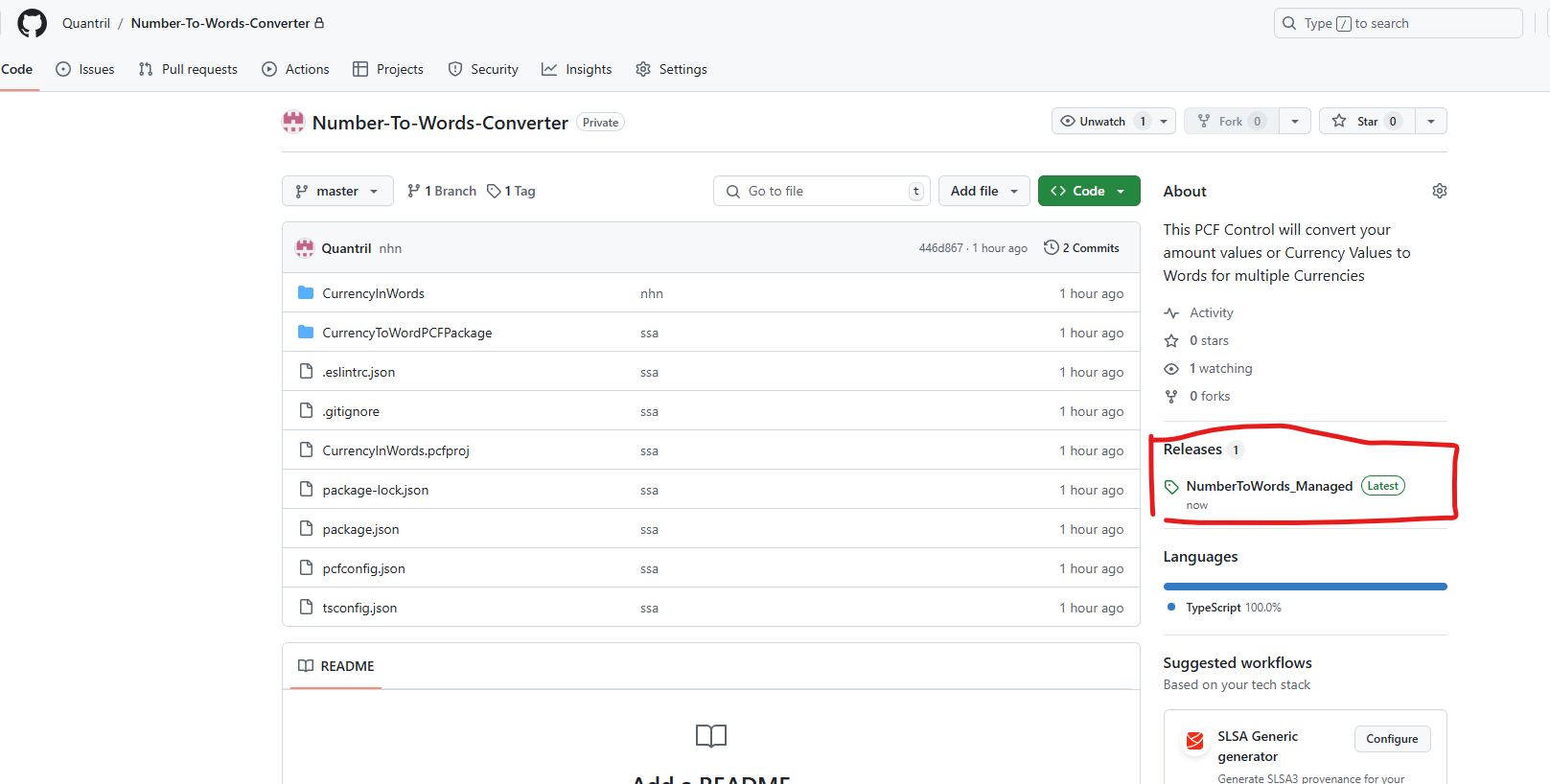
Step 1: Navigate to the Quantril GitHub Repository
Go to the Quantril GitHub repository using the link below: https://github.com/Quantril/Number-To-Words-Converter

Step 2: Go to the Releases Section
Once you’re on the GitHub page, click on the Releases tab to access the available versions of the solution.
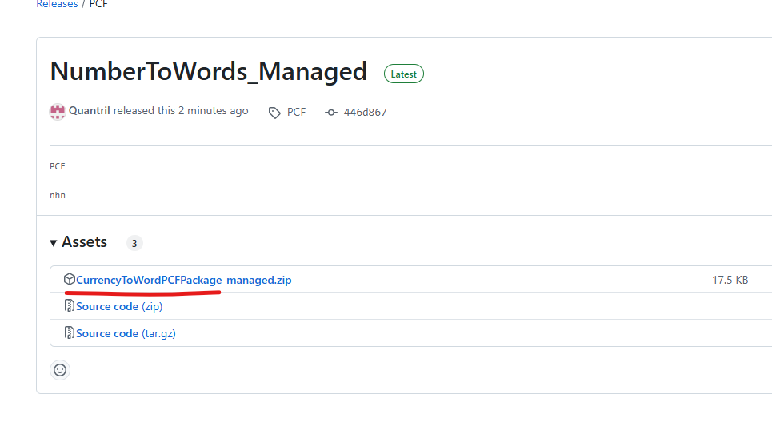
Step 3: Download the Managed Solution
Download the Managed Solution from the releases section. This is the version you will use to install the PCF control.
Step 4: Navigate to PowerApps
Go to make.powerapps.com.
Step 5: Select Your Target Environment
Choose your target environment (e.g., Development, UAT, or Production).
Step 6: Open the Solutions Menu
On the left panel, click on the Solutions menu.

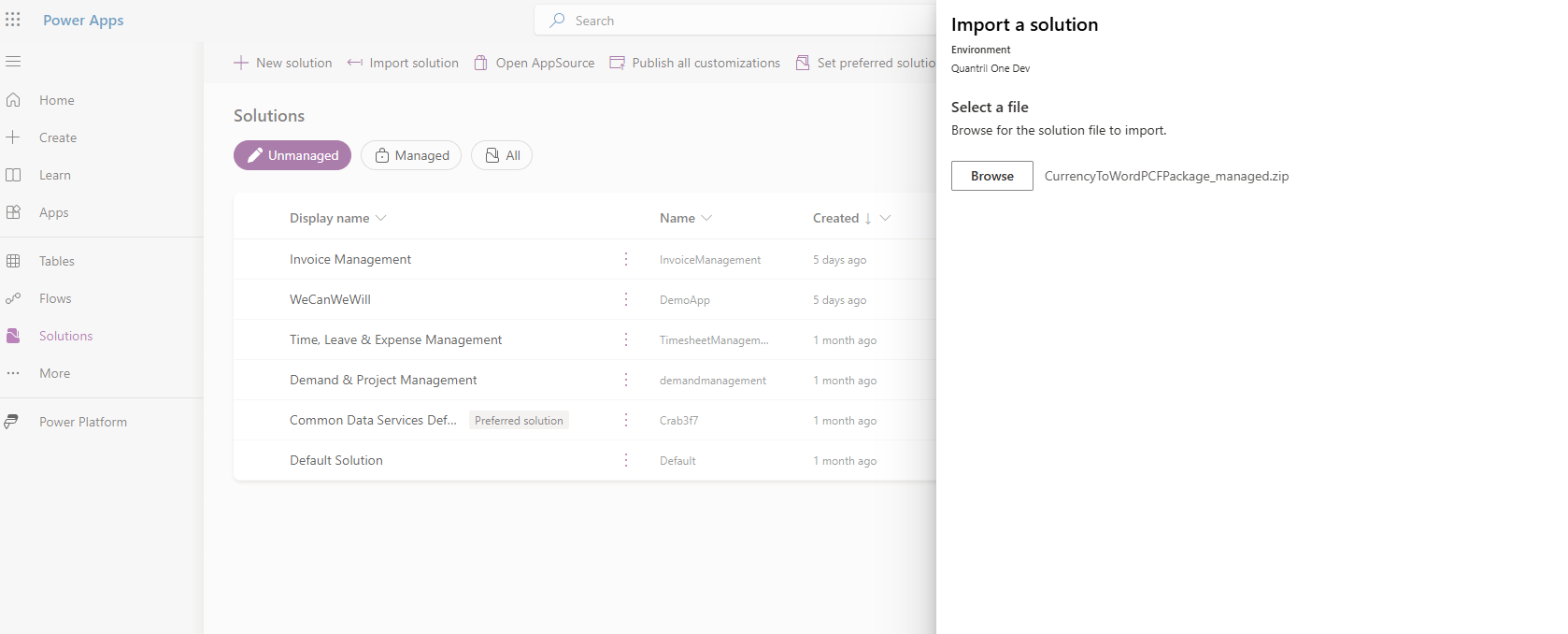
Step 7: Import the Solution
Click Import Solution, and select the Managed Solution file you downloaded in Step 3.
Step 8: Follow the Import Wizard
Follow the steps in the Import Solution Wizard to complete the solution import.

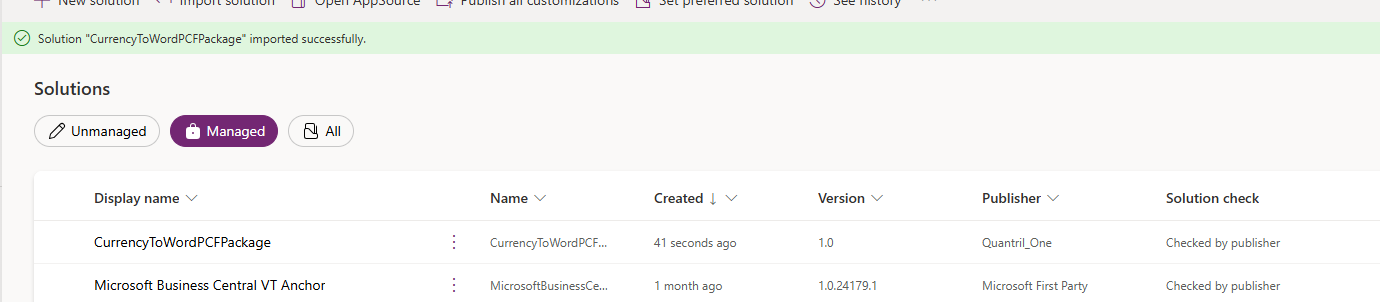
Step 9: Create or Open an Unmanaged Solution
Once the solution is installed, navigate to any Unmanaged Solution or create a new one. Add your target Entity and Form that contains the Currency field (data type: Money) and the Currency Lookup field (Transaction Currency, which is the default field).
For example, I’m using a custom entity called Contract Line with the following fields:
- Contract Value (Custom field with data type Money)
- Currency Lookup (Standard field called transactioncurrency, automatically created by the system)
- Amount in Words (Single line of text field, with a maximum length of 2000 characters)

Step 10: Open the Form
Open the form where you want to display the amount in words.

Step 11: Select the Text Field for Display
Select the Single Line of Text field that will display the amount value in words. Then, go to the Components section, click +Component, and look for Currency in Words Control. If you don’t see it, click Get more components.

Step 12: Configure the First Input (Amount Field)
For the first input, select the Currency or Money field that holds the numeric value. For example, if you have a contract amount like $20,000, select the appropriate field.
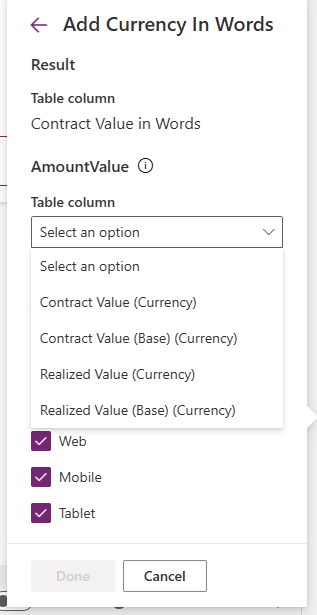
Step 13: Configure the Second Input (Currency Lookup Field)
For the second input, select the Currency Lookup field. By default, this field is named Currency, but if you need to display the amount in words in a different currency, select the appropriate currency lookup field.
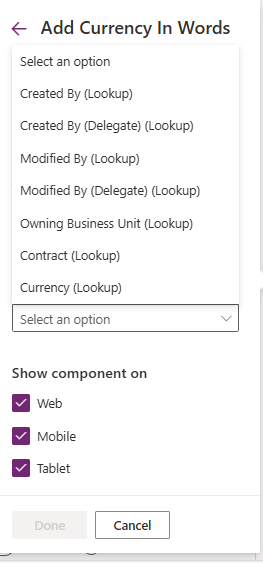
Final Selection
After completing the steps, your configuration should look something like this:
- First Input: Currency or Money field (e.g., Contract Value)
- Second Input: Currency Lookup field (e.g., Currency)
Click Done, Save, and Publish your changes.

Step 14: Test the Form
Navigate to the form and input a value into the Amount field (for example, the Contract Value field).
See the Magic!
Once you input a value, the system will automatically convert the amount into words (e.g., Twenty Thousand Dollars). It’s as simple as that!

I hope this PCF Control helps you with your business needs. If it does, please give it a thumbs up!
Happy Learning!


Hello Friyank Parikh,
Thank you for your initiative, it is very useful ! The only problem that I see is that the number in words is only available in the form but is not save, so not available in views… I need to access my number in word with a Power Automate Flow but the column that is suppose to be populated with words is empty. Is there a solution ?
LikeLike