I know this is old thing and everyone knows how to do that but i did not find any blog on internet which describe the whole flow in single Blog.
What is this post about?
How to connect my external application developed in C#, Python, Java or even Postman with MS CRM and access its data with proper authorization.
In this blog we will focus on Calling CRM API’s (OData) from POSTMAN
and in next blog we will call same CRM Api’s using Python application/Code.
So, Lets Begin from scratch…
Step 1 : Create CRM Trial, Here is my blog on how to create CRM Trial account
Step 2 : Now as you created CRM trial account, you get some additional application with CRM.
To know which all app go to office portal

As all the above apps are maintain with Azure Security, we get one azure account as well – Azure Link
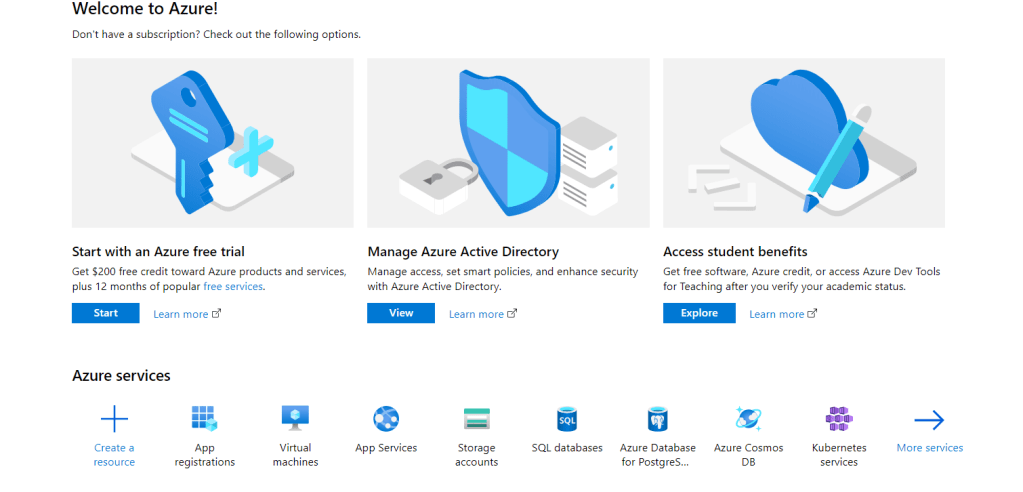
Step 3 : Once you are into Azure portal, Search for App Registration in search bar.
Note : Your Azure account and CRM account should be same.
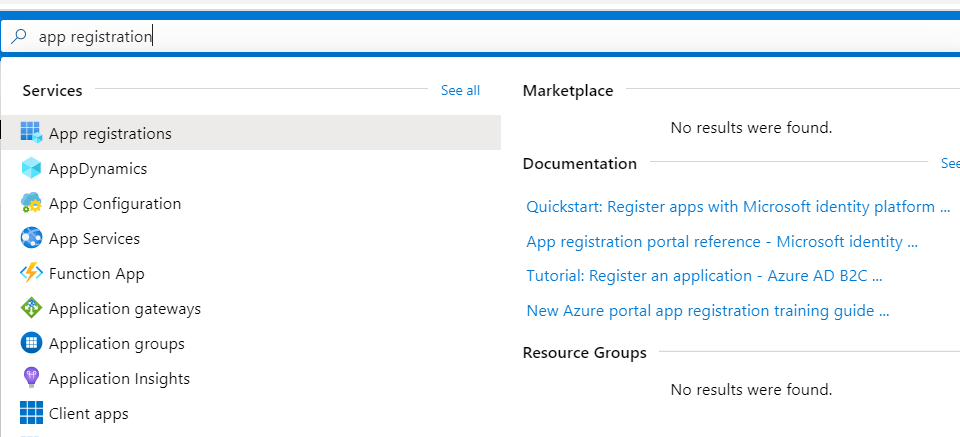
Click App registrations.
This should bring you to following screen, Click “New registration“.

Step 4: You are here now.
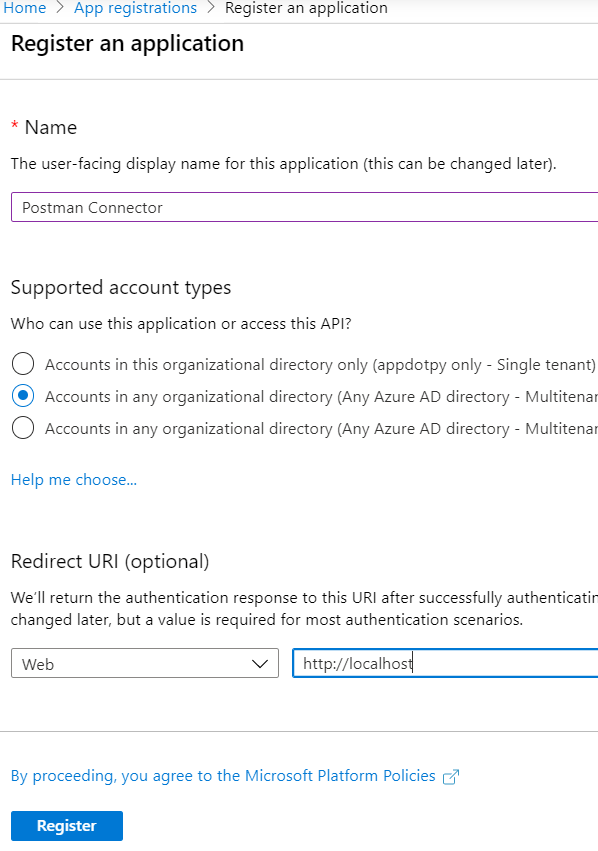
1. Provide some meaning-full NAME.
2. Select account type in any organization – because we want to allow CRM to get access from any tenant and to connect specific tenant, we will provide tenant ID.
3. Provide Redirect URL, this is optional but we will need in POSTMAN, so lets specify as local host as i did
4. Click Register.
Step 5 : Until now we have our app registered created but we have not told azure which APP.
To link CRM App with this app registration record in Azure,
Go to API Permission > Click Add a permission > Select Dynamics CRM
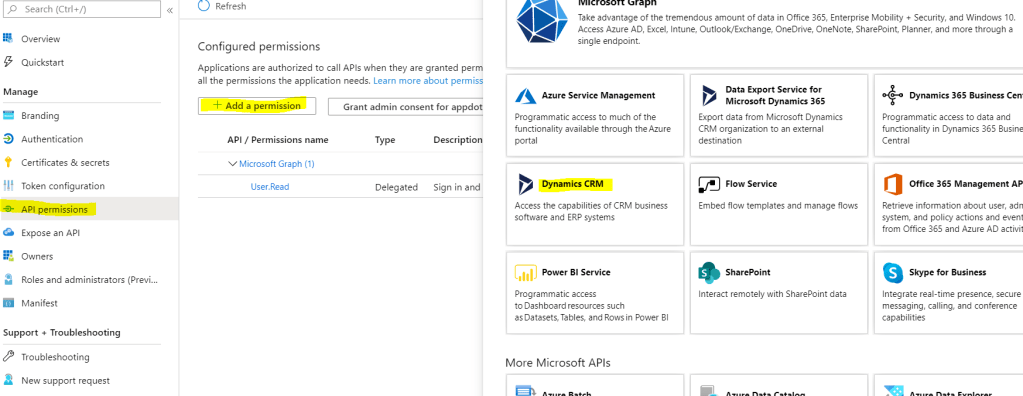
Now this is linked to our CRM app which we created during Trial.
Step 6 : Lets move to POSTMAN and what all things it required to connect to CRM OData API.
Go to Postman, Click “New Collection”
— Provide name
— click on authorization tab.
— Select Type as OAuth 2.0 (This is the version of Open Data used in CRM API)

Step 7 : Now as we see, To connect to OData API of any application, POSTMAN wants something called Access Token. so how do we get that for CRM.
So Microsoft CRM D365 says to call CRM API, Provide me valid token and i will return you Data.
But what is valid Token and how to get it? what all things are required to get valid token.
Click Get New Access Token.

So, we will need following things to get Valid Token.
Callback URL : ??
Auth URL : ??
Token URL : ??
Client ID : ??
Client Secret : ??
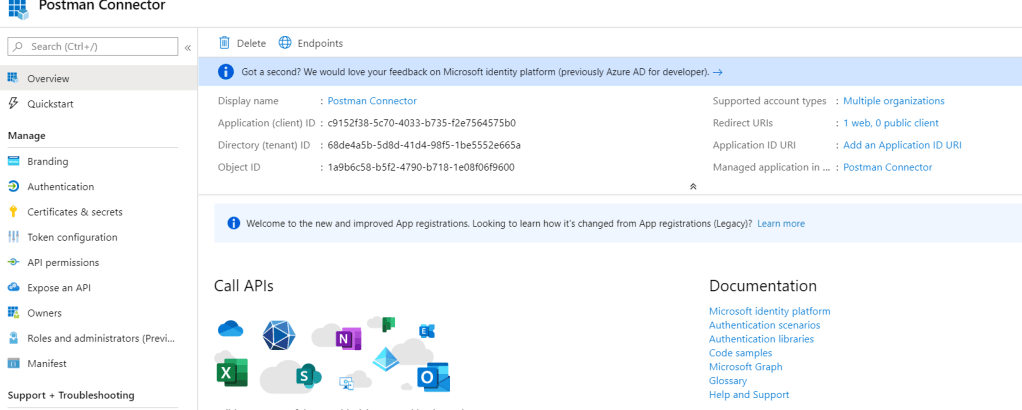
All the above parameters for generating token is available in App we Registered in Step 4 .
Before we get all the above Parameters, one thing we have to do to allow access to public client is, setting the flag as true Manifest section of Azure App.
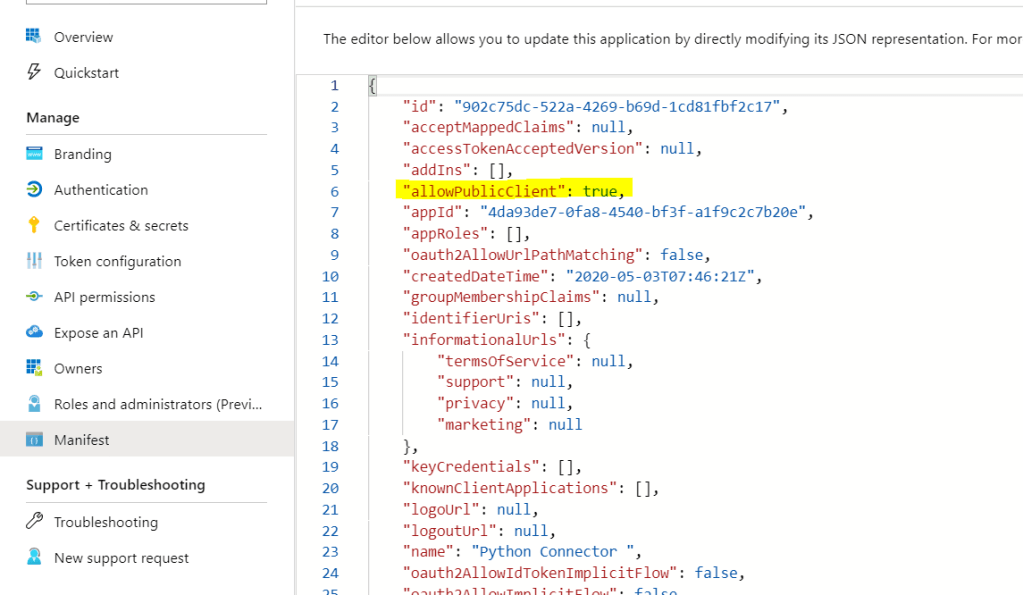
Callback URL – This is redirect URL we provided while creating app.
in our case its http://localhost
Open Azure registered app and go to authentication.

Auth URL and Token URL :
Click Overview > Endpoint and it will bring following Endpoint list for you.
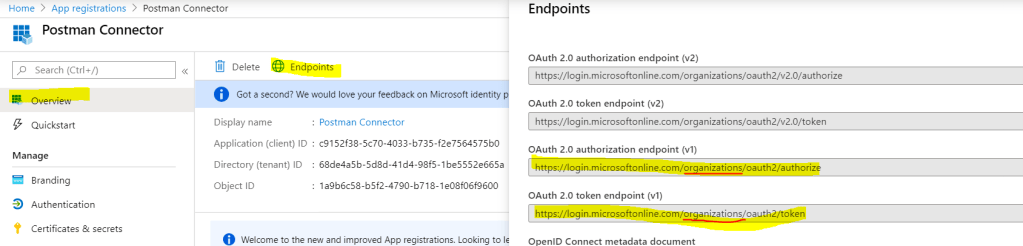
I have highlighted two Endpoint, Authorization and Token Endpoint Copy that and paste in POSTMAN as below

Also, in Auth URL, We need to specify which CRM instance its needs to be connected.
So Auth URL is generated based on 3 values
1. The Endpoint we get from Azure : https://login.microsoftonline.com/organizations/oauth2/authorize
2. The Tenant ID we get from Azure : Replace organizations in above URL with Tenant ID.
3. Add Resource URL after Auth URL – Postman never puts resource URL by default as in C# it does automatically.
?resource=https://{orgname}.crm.dynamics.com/
Resource URL – This is your CRM instance url.
Finally: our Auth URL will look like below
https://login.microsoftonline.com/68de4a5b-5d8d-41d4-98f5-1be5552e665a/oauth2/authorize?resource=https://{orgname}.crm.dynamics.com/

Also, above Tenant ID, we have client ID, Copy and paste in POSTMAN.
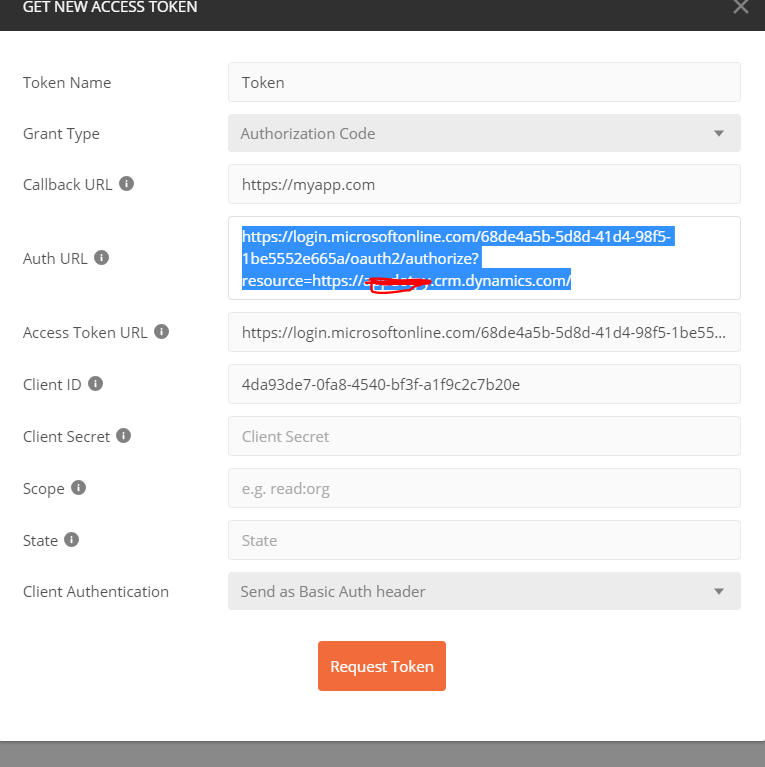
Now last attribute which is needed to get token is Client Secret.
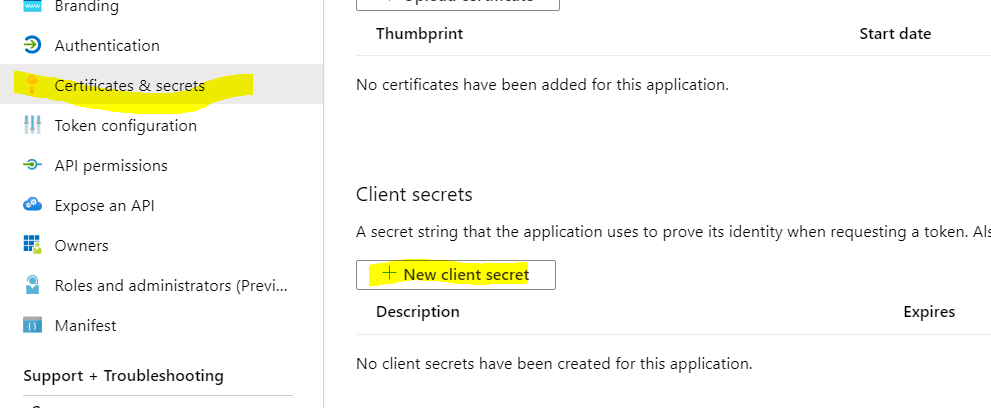
To get Client Secret, Go to Azure App, Click “New Client Secret”
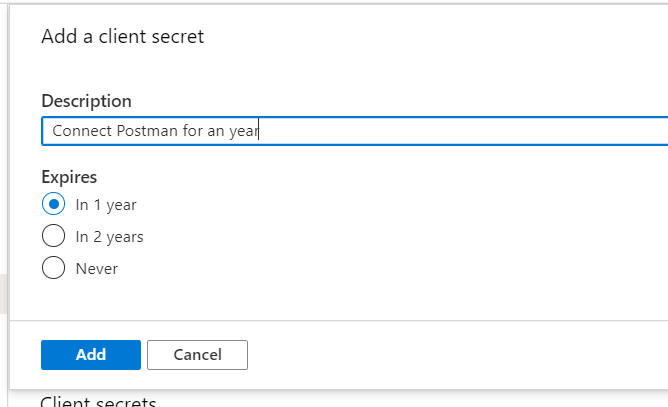
provide some description and select for how long you want this Client Secret.
This should generate Client Secret for you, Copy and paste in POSTMAN.


Click Request Token, it should ask you to provide CRM Credentials.
After you provide the credentials, it will ask for permission to access CRM with Azure ODATA, Say accept.

Once you click accept. it will connect with CRM and generate token for your App.
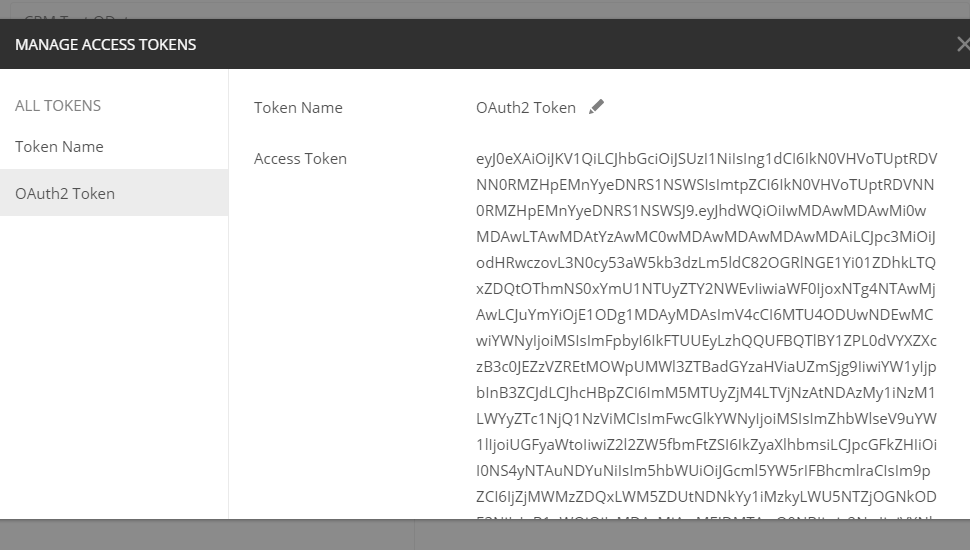
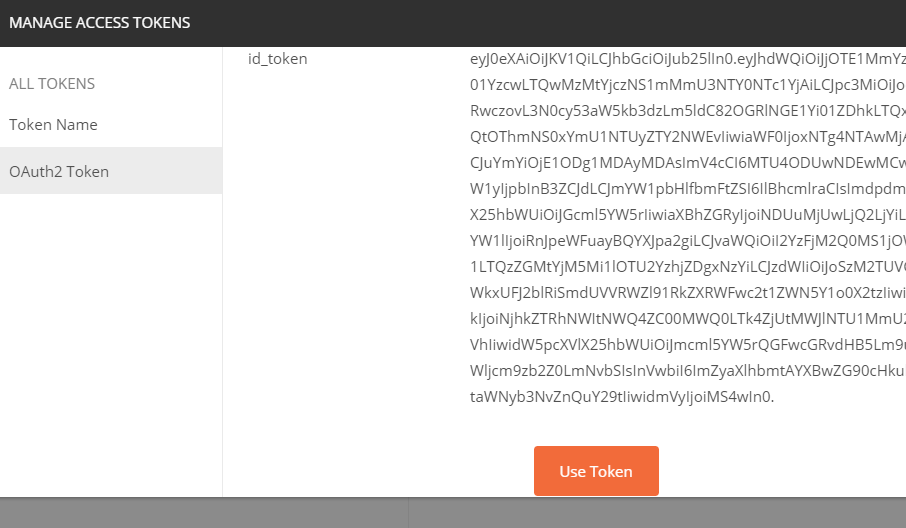
Click use Token and now make CRM API call.
by default, the token expires in 59 minutes, you can regenerated.
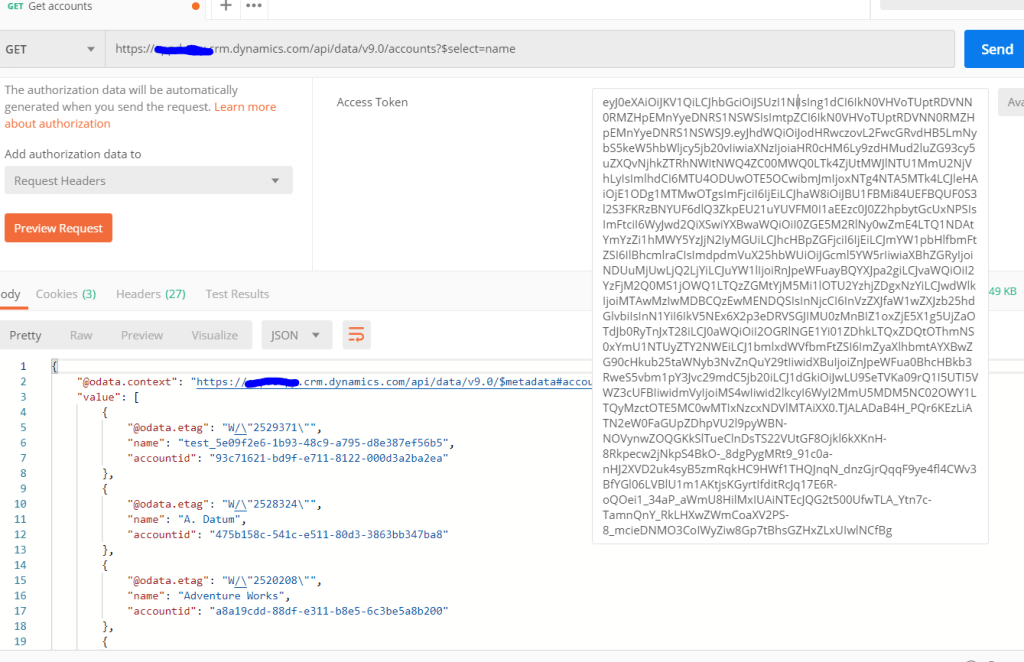
Step 8 : In this final step, lets make CRM Call form POSTMAN.
Create Request in Postman,
add following URL
https://{orgname}.crm.dynamics.com/api/data/v9.0/accounts?$select=name

 The Tech Burst
Amazing, great work thank you so much.
LikeLike
I appreciate you putting this together, has saved me so much time and effort
LikeLike