No need to Make any plugin or any external call for auto numbering.
Auto number is now possible using just one attribute.
Things to do before getting in to this.
- Should have one CRM instance. (D365 30days free trail will do)
- Create Custom Entity (No Extra Fields are required, except the primary one which is be default).
That’s it.
Note : we are not adding any field for auto number using CRM Default solution.
So, until now you should have one Entity created with no custom field in it (only default system generated fields).

Now its time to write some code to see this auto number thing happen.
what we have to do is to create an Attribute using C# Code and make that attribute to be auto numbered.
we can even have some prefix or suffix also.
Jump to visual studio,
Create one console App.
First Add reference to following three NUGET Packages

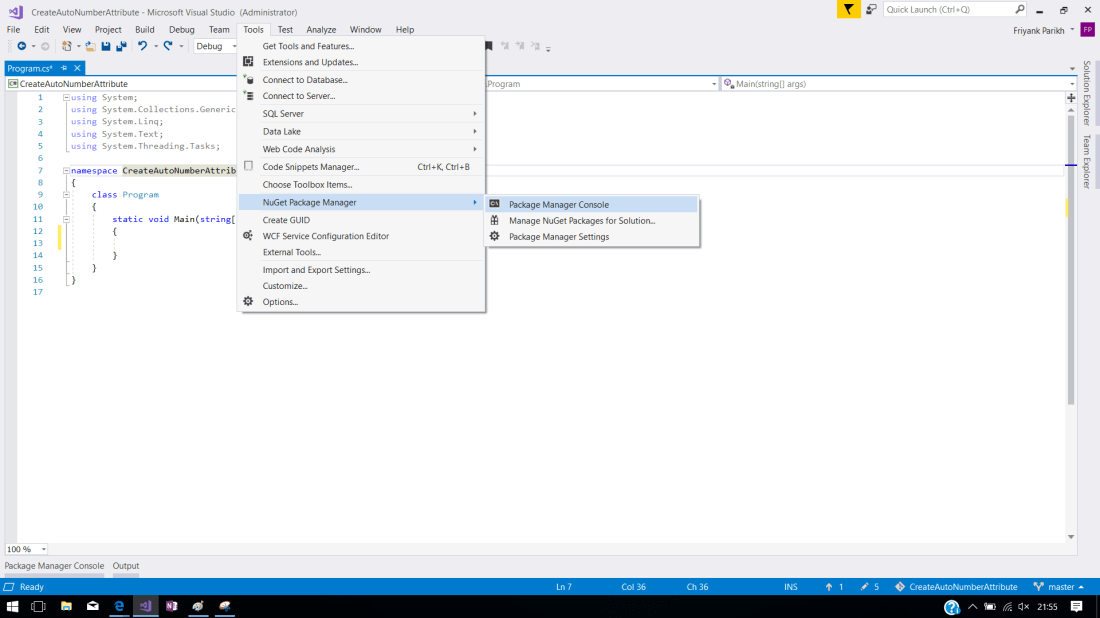
Install following two package
Install-Package Microsoft.CrmSdk.CoreAssemblies -Version 9.0.0.5
Install-Package Microsoft.CrmSdk.XrmTooling.CoreAssembly -Version 9.0.0.5
Add reference to System.configuration.dll
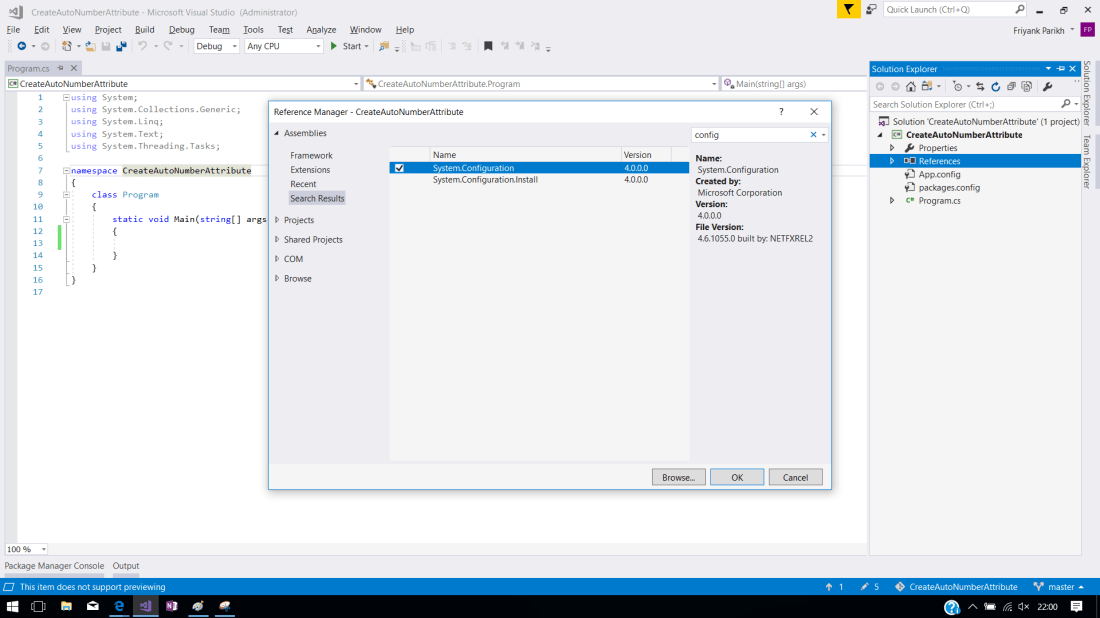
Now Lets build and check if every package are installed properly.
Add following code to Connect to CRM instance using C#
static void Main(string[] args)
{
CrmServiceClient crmServiceClientObj = new CrmServiceClient(ConfigurationManager.ConnectionStrings["CrmOnlineStringFromAppConfig"].ConnectionString);
if (!crmServiceClientObj.IsReady)
Console.WriteLine("No Connection was Made.");
Console.WriteLine("Connected");
}
To know more about connecting C# to CRM Online Instance check out my Blog Simple Code to connect to MS D365 Online using console Application
Run the application to test if its connected.
You need to create two object
1. StringAttributeMetadata to set attribute meta data
2. CreateAttributeRequest which will hold entity name and attribute.
private static string entityName = "new_autonumberdemoentity";
static void Main(string[] args)
{
CrmServiceClient crmServiceClientObj = new CrmServiceClient(ConfigurationManager.ConnectionStrings["CrmOnlineStringFromAppConfig"].ConnectionString);
if (!crmServiceClientObj.IsReady)
Console.WriteLine("No Connection was Made.");
Console.WriteLine("Connected");
Console.WriteLine("Create Auto number Attribute for Entity {0}", entityName);
var attributeMetaData = new StringAttributeMetadata() {
AutoNumberFormat = "SYS {RANDSTRING:4} - ORG {SEQNUM:4}",//{DATETIMEUTC:yyyyMMddhhmmss} can also be used
SchemaName = "new_AutoNumAtt", //this should be unique
RequiredLevel = new AttributeRequiredLevelManagedProperty(AttributeRequiredLevel.None),//set it as per required
DisplayName = new Microsoft.Xrm.Sdk.Label("Entity Code",1033), //Lable Name
Description = new Microsoft.Xrm.Sdk.Label("The value will be AUTO GENERATED",1033), // On hover description
IsAuditEnabled = new Microsoft.Xrm.Sdk.BooleanManagedProperty(false),
IsGlobalFilterEnabled = new Microsoft.Xrm.Sdk.BooleanManagedProperty(true), // we need it to be searched direclty from global search.
MaxLength = 100 //
};

CreateAttributeRequest req = new CreateAttributeRequest()
{
EntityName = entityName,
Attribute = attributeMetaData
};

crmServiceClientObj.Execute(req);
Console.WriteLine("Created Auto number Attribute for Entity {0}", entityName);

}
Before Running you will find no Attribute for this custom entity is present.
Apply filter in Views of Fields to custom.
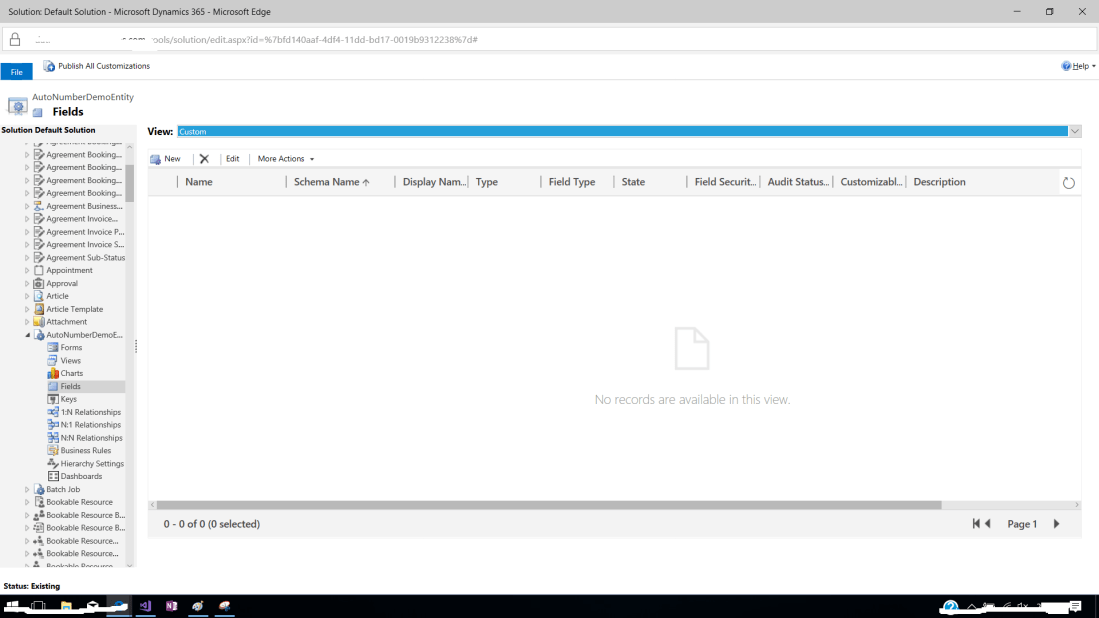

Run the code and Refresh Field View to see.

Add this Field on your form and publish it.
Open the custom Entity and click new Record to see a create page which should have this attribute on the form but with no value in it.
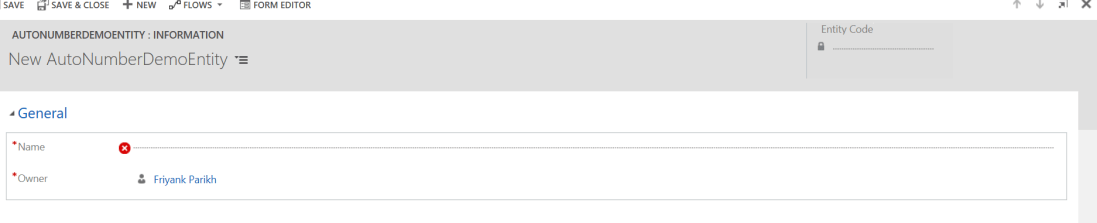
Create new Record and save the record
Boom ! check it out. 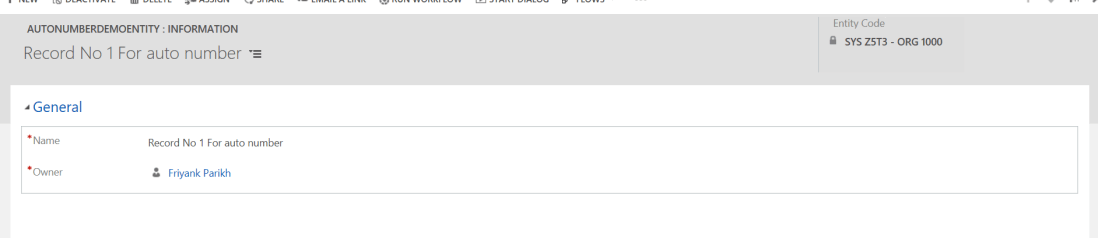
Set View with New custom Attribute.
Check the following View

Happy Coding.
Pull Code from git
Regards,
Friyank Parikh

 The Tech Burst
Very nice article.
LikeLike
this is “sure” to be unique?
LikeLike