In today’s fast-paced world, typing every little detail into CRM can feel like a chore. Whether it’s capturing meeting notes, customer feedback, or service visit details, time spent typing is time taken away from engaging with clients.
That’s where my new PCF Control — SpeechToText comes in.
What is the SpeechToText PCF Control?
The SpeechToText control replaces your standard textarea field with a voice-enabled input field. Instead of typing, users can simply speak their notes, and the control automatically converts speech into text.
Key highlights:
- Start/Stop Buttons → Begin and end voice capture with a click
- Editable Text → Once the speech is converted, users can edit the field before saving
- Real Use Cases → Meeting notes, customer call summaries, field service updates, or any text-heavy field
It’s a small change that makes Dynamics 365 much more user-friendly and efficient.
Why This Control?
We’ve all been in situations where:
- Notes are long and typing them is tedious
- Field users (sales, service, support teams) are on the go
- Integrations generate data, but humans need to add context
Typing slows you down. But speaking? That’s quick and natural. With this control, your users can speak freely and let the system handle the typing.
Demo in Action
Here’s a quick example of how it works:
Spoken Input:
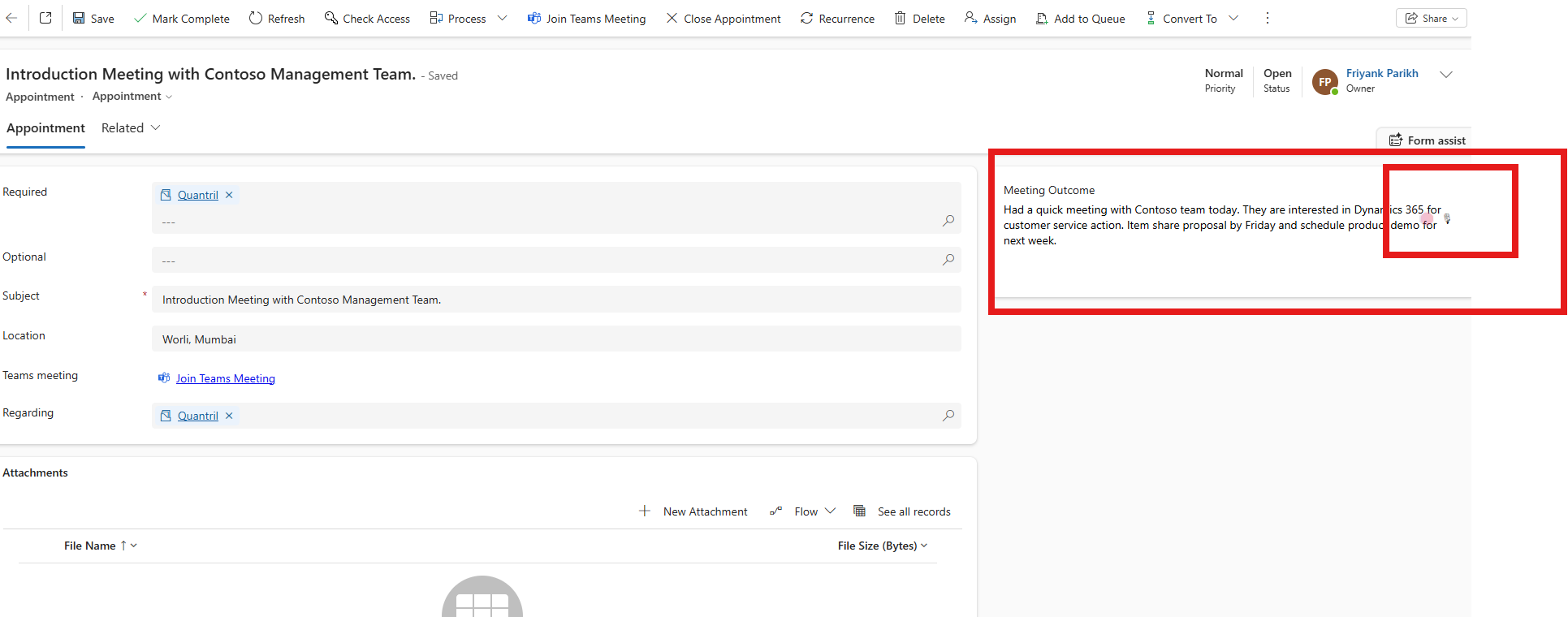
“Had a quick meeting with Contoso team. They are interested in Dynamics 365 for customer service. Action item: Share proposal by Friday.”
Captured Text:Had a quick meeting with Contoso team. They are interested in Dynamics 365 for customer service. Action item: Share proposal by Friday.
In just a few seconds, the meeting notes are ready, editable, and saved — without a single keystroke.
Watch the demo here: YouTube Video
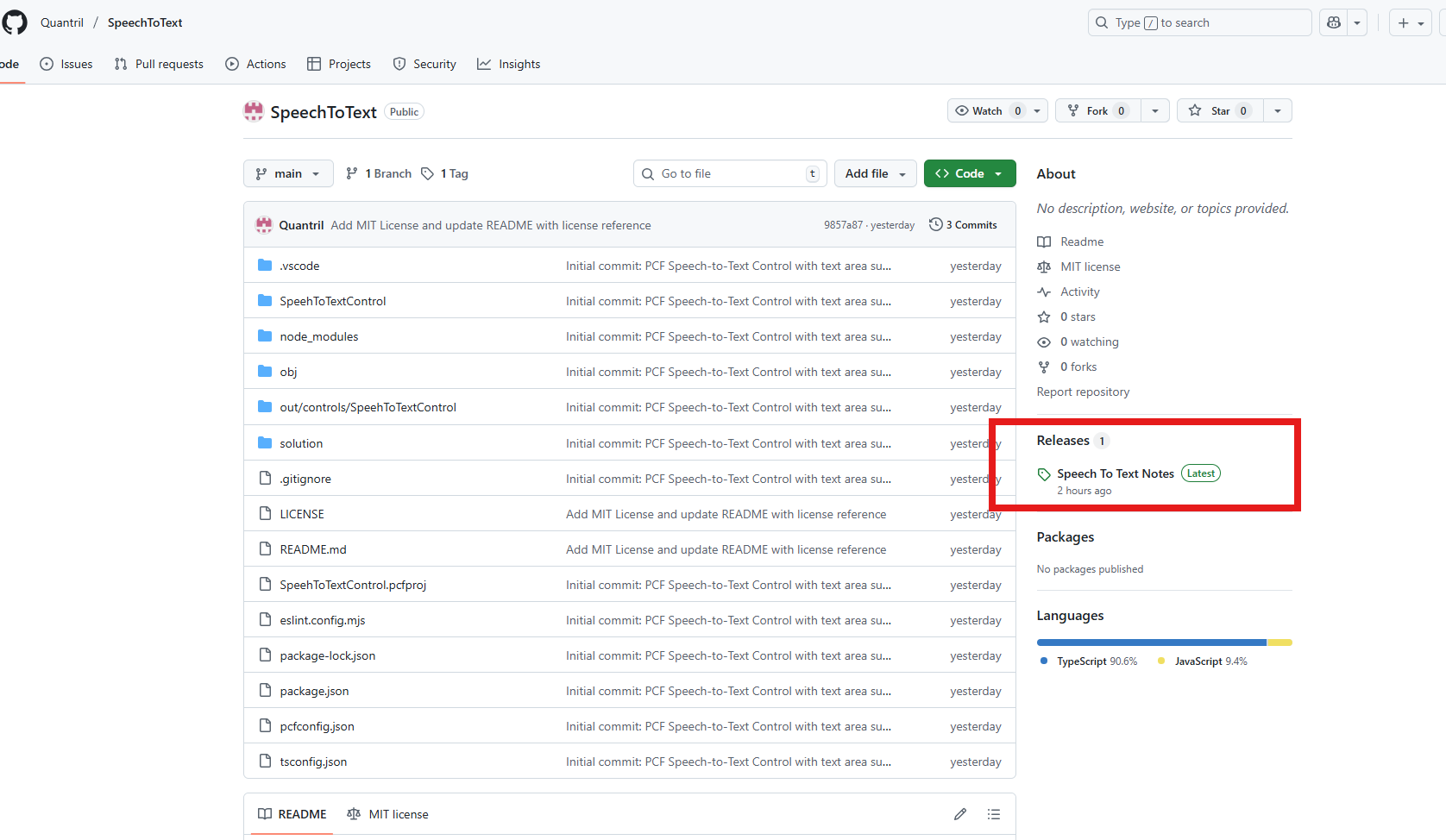
Head over to GitHub:
Download Solution
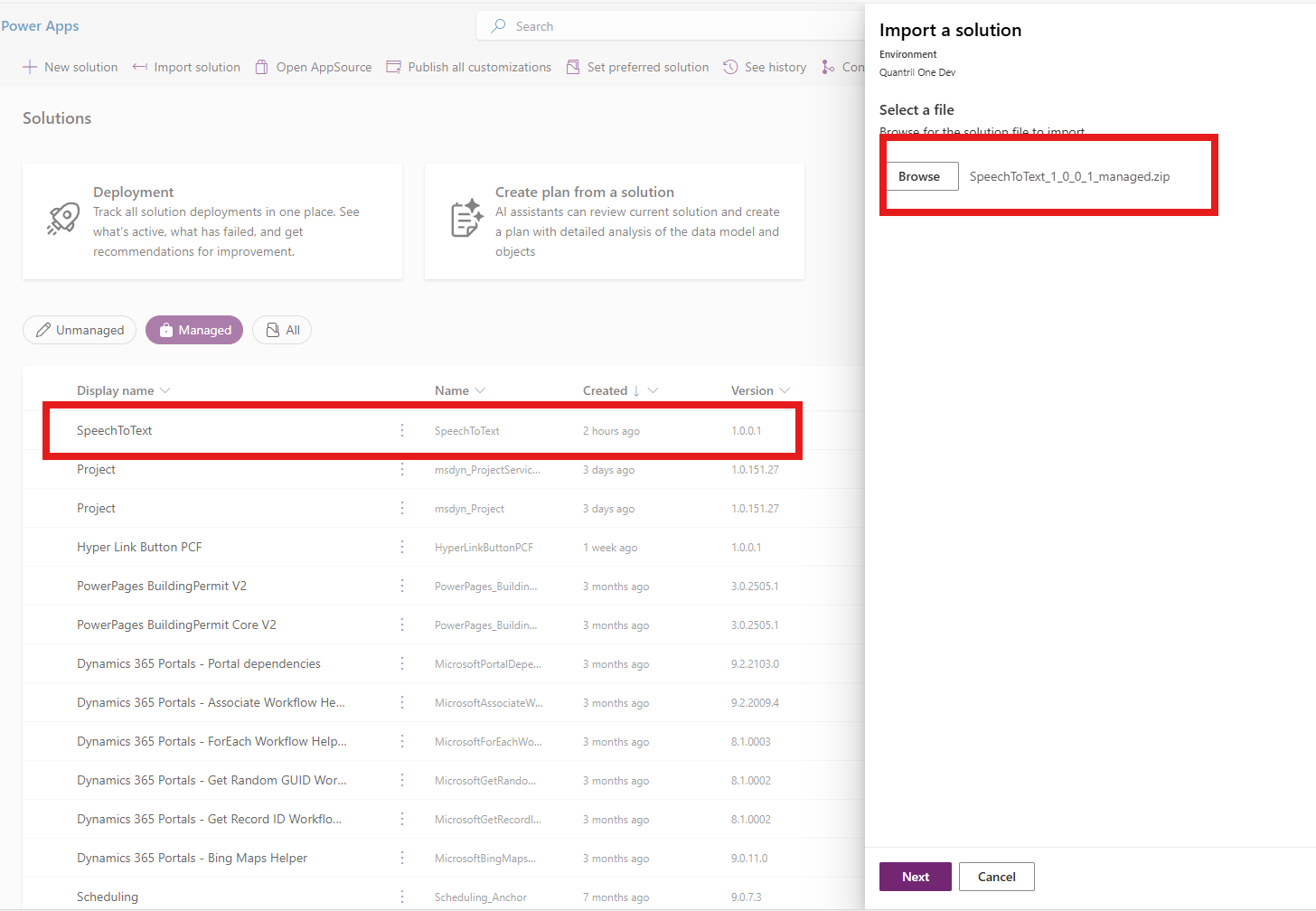
Import the managed solution into your Power Apps environment
Open your form, select the textarea field (e.g., Notes, Description, Appointment details)
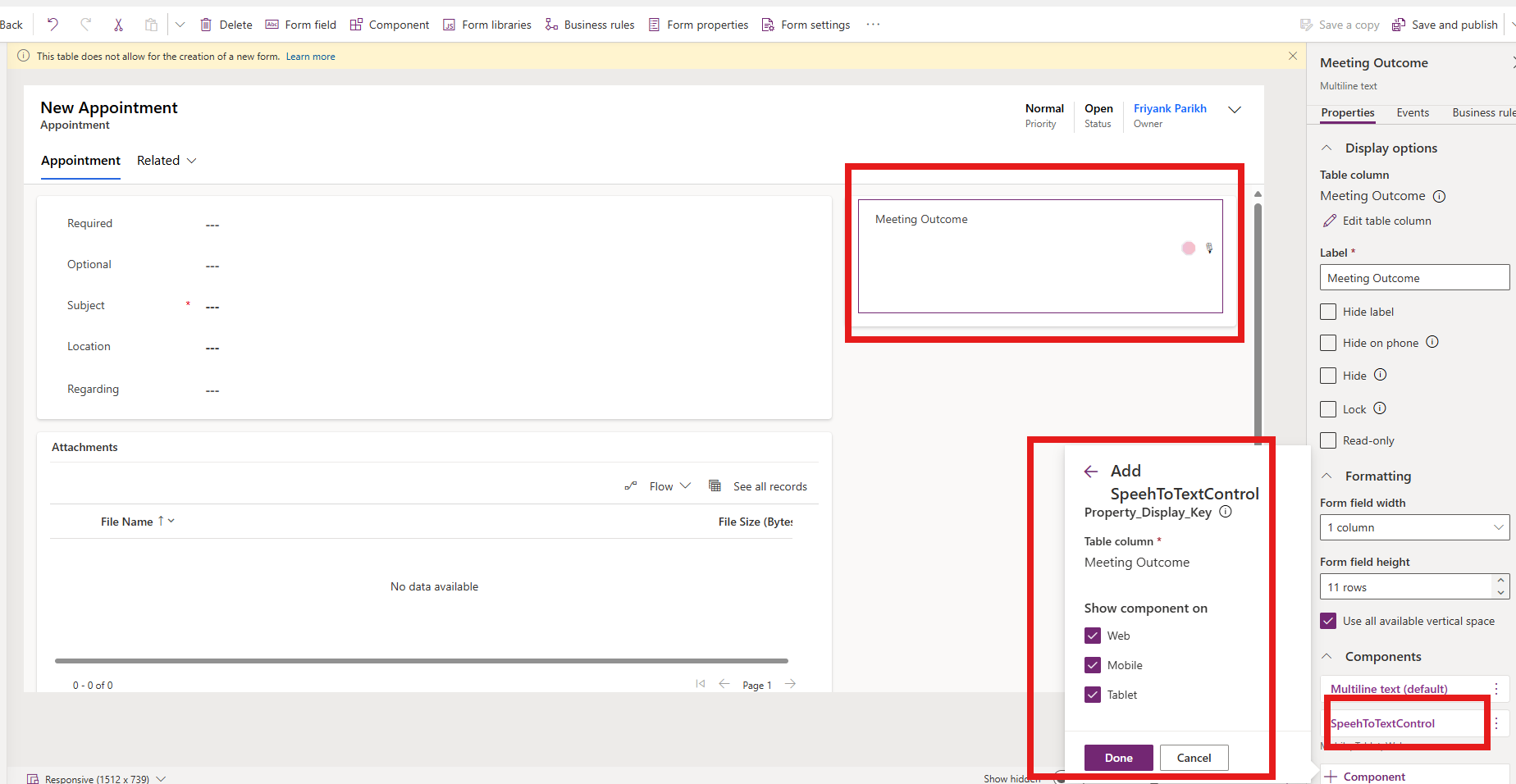
Add the SpeechToText control under Components
Save, publish, and test it out
Who Can Benefit?
This control is especially useful for:
- Sales Teams → Quick meeting notes after calls
- Service Technicians → Onsite visit updates
- Project Managers → Capture discussions on the go
- Customer Support → Document call summaries without typing
Basically, anywhere text is needed but typing feels like friction.
The SpeechToText PCF Control makes Dynamics 365 more human — letting users talk naturally while the system does the work.
Try it today: GitHub Link
Watch it in action:
If you try it out, I’d love to hear your feedback! Comment below or connect with me to share how you’re using it in your projects.
Let’s make CRM more user-friendly, one control at a time.

 The Tech Burst