Today we will learn about all the options and properties available on Microsoft Forms in one Blog.
- Navigate to Microsoft Form pro portal and click new Pro Survey
Microsoft Form Pro

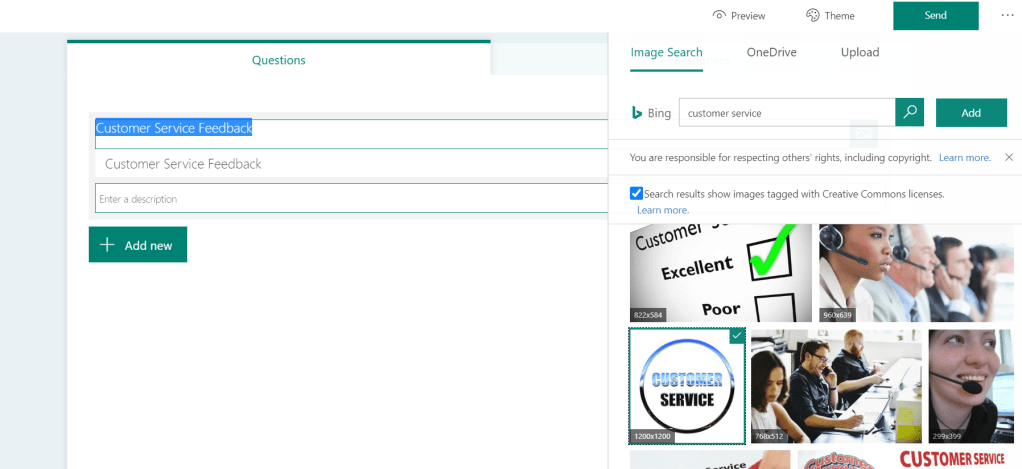
2. Specify name and image, You can select image from multiple sources
Name – This is title of your form. suggest you to provide company name and company logo here.
3. Now Click on Add New and we are provided with list of various options to submit feedback
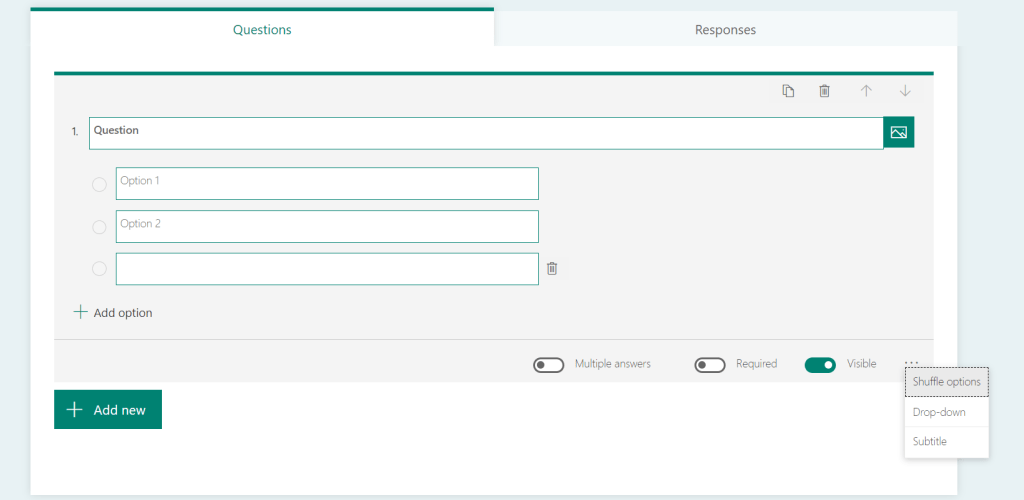
Choice
Here, you can provide questions and list of options user can select.
This could be single select or multiple select or even we can give option to add text in other text box.
Properties :
Multiple answers : Multiple answers can be allowed
Required : Making the question as required, Normally on customer feedback form, Field are kept optional.
Visible : To Make visible only on some condition using branching
Shuffle Options : This is where we can Shuffle all the options, So every time user open the questions options will be shuffled.
Drop-down : We can even display values in form of drop-down if there are too many questions.
Subtitle : If some subtitle for specified question, you can specify here.
Image : For better explanation of your question, you can even put image for same.
Text
This option allow user to input text, this is generally used for comments if any. But you can use as per your need.
Here also, you can upload image, set it required, or visible.
There are some cool features in text,
You can even show Sentiments as the message user is typing is positive or negative.
As this help user to make changes if some text may sounds negative but intention could be Positive.
Long Answer, can give more space to customer for adding value.
Restriction can also be added, like only numbers should be allowed, or to allow only email address or even some regular expression can be used as a part of text validation.

Rating
If you need some feedback and quickest way from customer, Rating is the best option.
User do not have to waste much time is selecting options or answering some text.
its just they select stars or smiles or number and done
Rating also has common properties like, Image visibility, Required
Apart from those properties, Rating also has some cool features
we can change what form rating will be visible, it could be either numbers or smileys or even Stars.
Labels is only available for stars and numbers, which define the lowest rating text and highest rating text.

Date
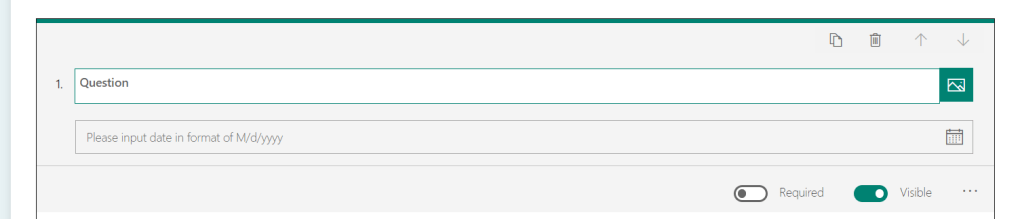
Use this control to capture date in Survey or Feedback .
There is no different options, some of the common properties are image, sub title, visibility and required.
Ranking
Use this option, to allow use to specify some ranking.
There is no different options, some of the common properties are image, sub title, visibility and required.

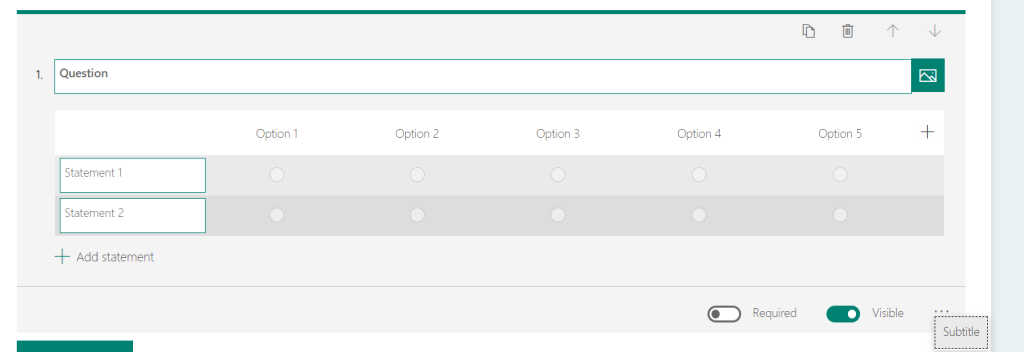
Likert
This is perfect option and used widely when it comes to ask some feedback on some training or webinars
There is no different options, some of the common properties are image, sub title, visibility and required.
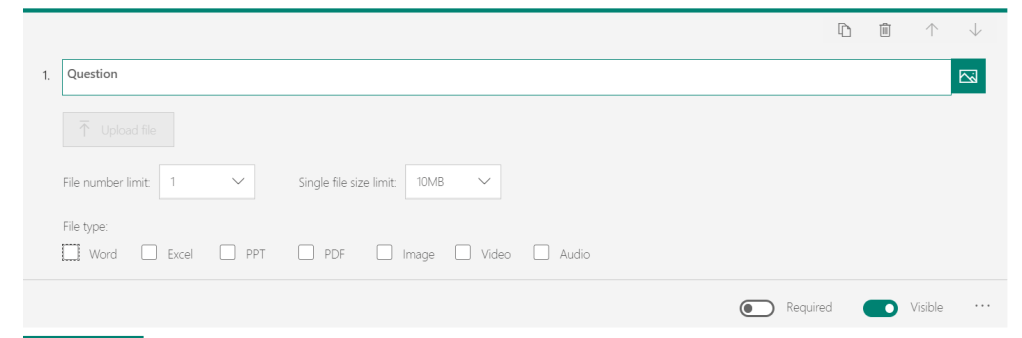
File Upload
This control allow user to upload file, it might be used very few while for feedback but forms should have this control when there is something called user KYC or such kind of requirement
You can specify what should be max size, or File type allowed
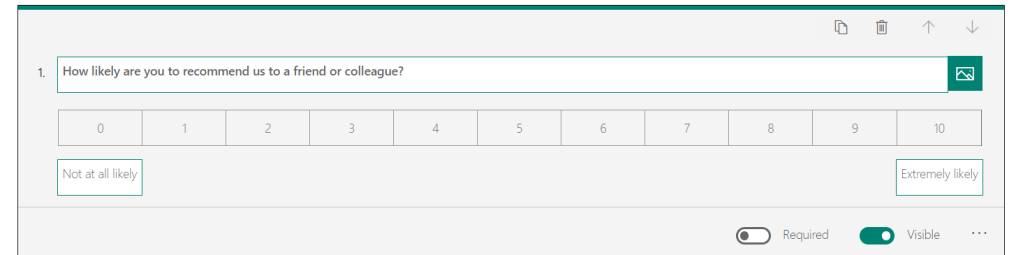
Net Promoter Score
This control is also like Rating, But with more options for rating,
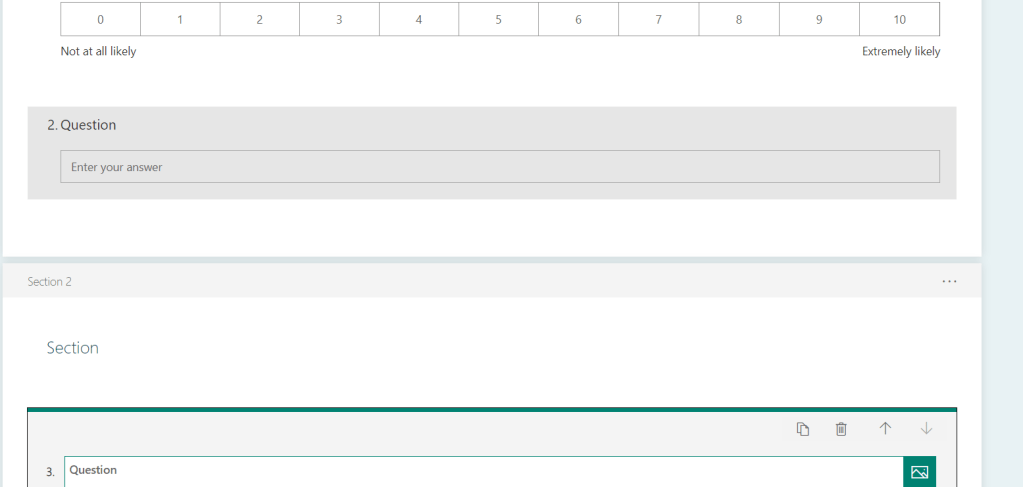
Section
This allow to add one more section to add controls separately as we did for above sections.
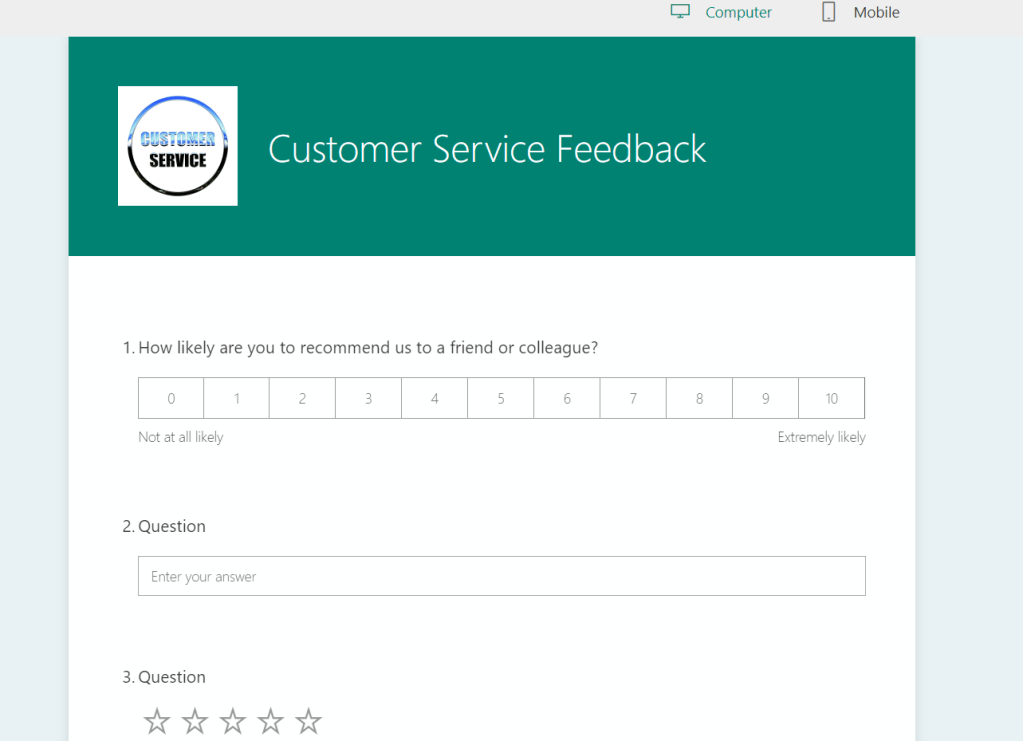
Preview Button.
This button help you preview about how form will look like to end user. So that we dont end up sending something which is not correct for user.
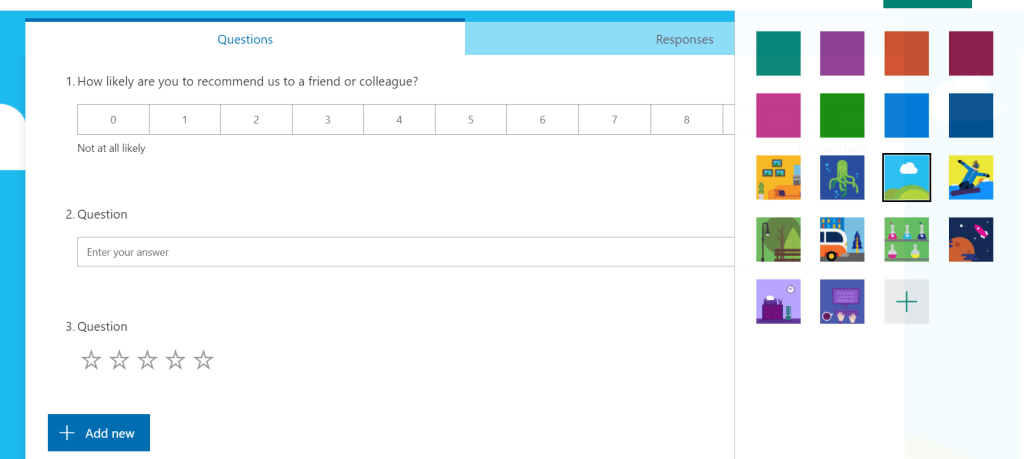
Themes
Specify themes as per your Client or end user requirement,
Here we can even push our custom theme, like image or custom color
Share
This will provide the link to share this form as a URL so anyone can provide feedback/Survey using this form

Survey Variables
This is variable we can use through out the form.
For E.G > if we have values coming from Flow or Some Email, We can set value of those variables there and those values can be used here on Form.


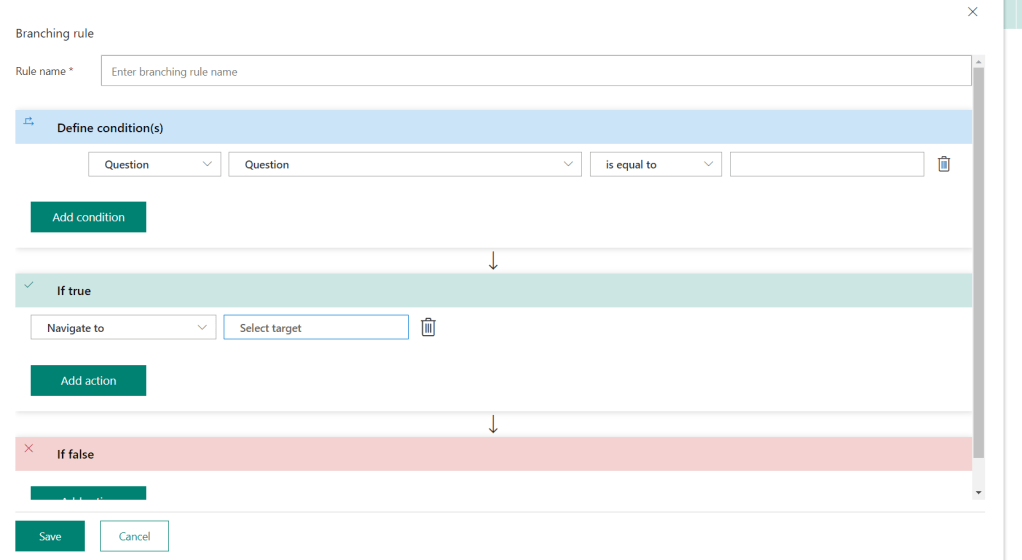
Branching Rule
This is one of the Gem feature of Microsoft Flow,
Let says you have requirement on how to show/Hide specific questions based on some previous question answer.
or lets says, based on survey variable, you want to decide which section or questions to Display, This whole logic can be implemented in this branching
Conditions > condition can be on questions or survey variables
Actions can be multiple actions > where you can show or hide sections or questions.
or you can navigate user to another question or repeat the same question chain or even you redirect to URL.
Multilingual
Specify if question to be display in multiple languages
Settings
Some Core settings related to Microsoft Forms
Send Button
Now once your Form is ready with set of Questions to be asked with options and conditional branching if any,
You can use this is following options
Directly send it as an Email to people from your AD directory or even anyone outside directory
You can even use this with Power Automate, so to implement logic based on connector.
We will use this to connect Dynamics CRM with Microsoft Forms PRO using Power Automate
It also has options to embed as an HTML or link
Also, QR Code which can be shared to anyone via any medium
So anyone can scan and fill up the survey

I know this Blog is big, But i want to cover all options of Forms Pro in one blog, So people dont have to navigate around.
Hope it helps,

 The Tech Burst
2 thoughts on “MICROSOFT FORM’s PRO.”