
Click on BPF name to see some basic details of BPF.
You can see BPF Name, Primary Entity, Owner, Category and Schema Name
Also add Description.
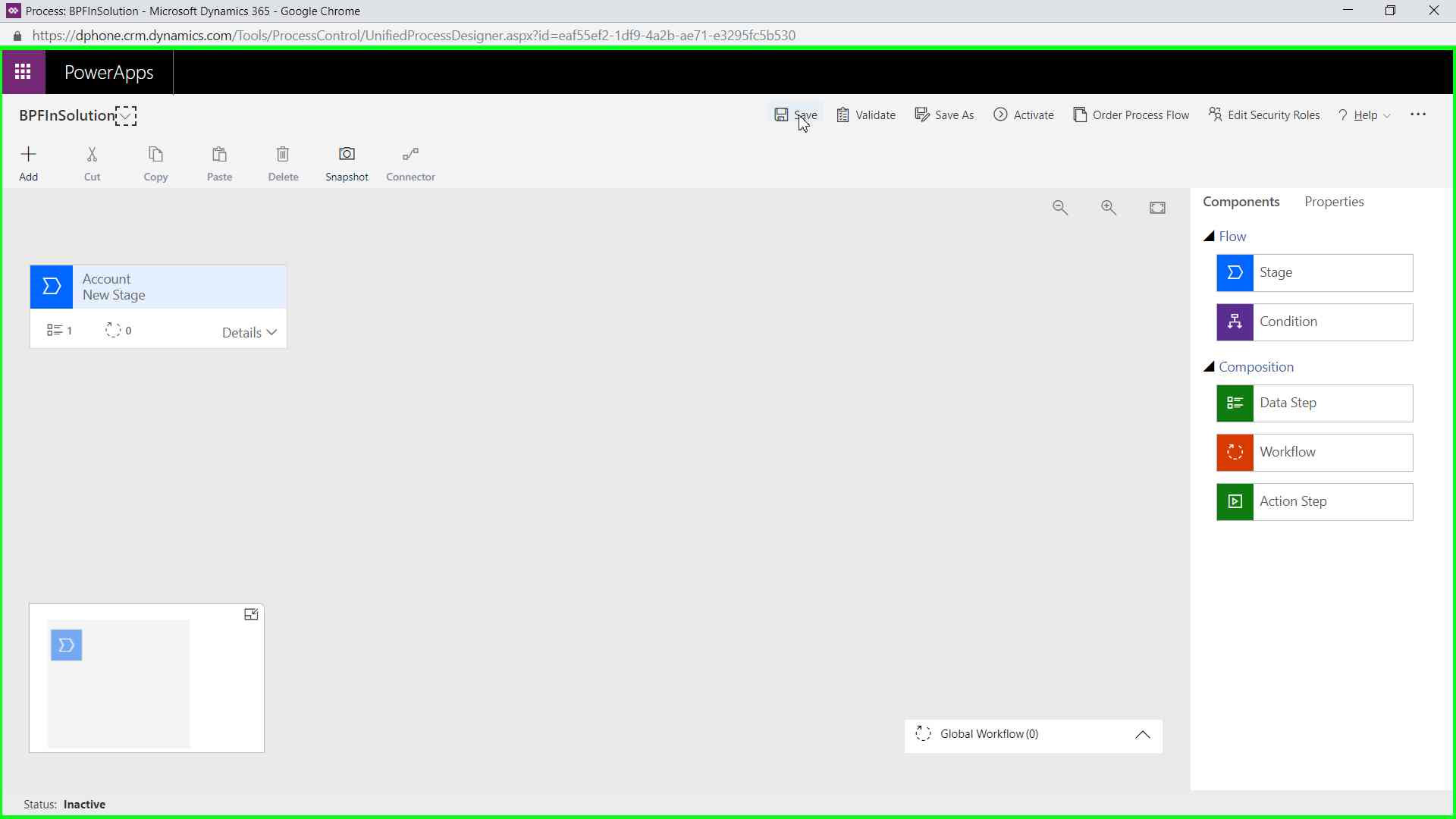
Next options is Save or Update of Business process Flow.
This button changes depend on state of Business process.
This validates not all flow and attribute, just save it as it is.
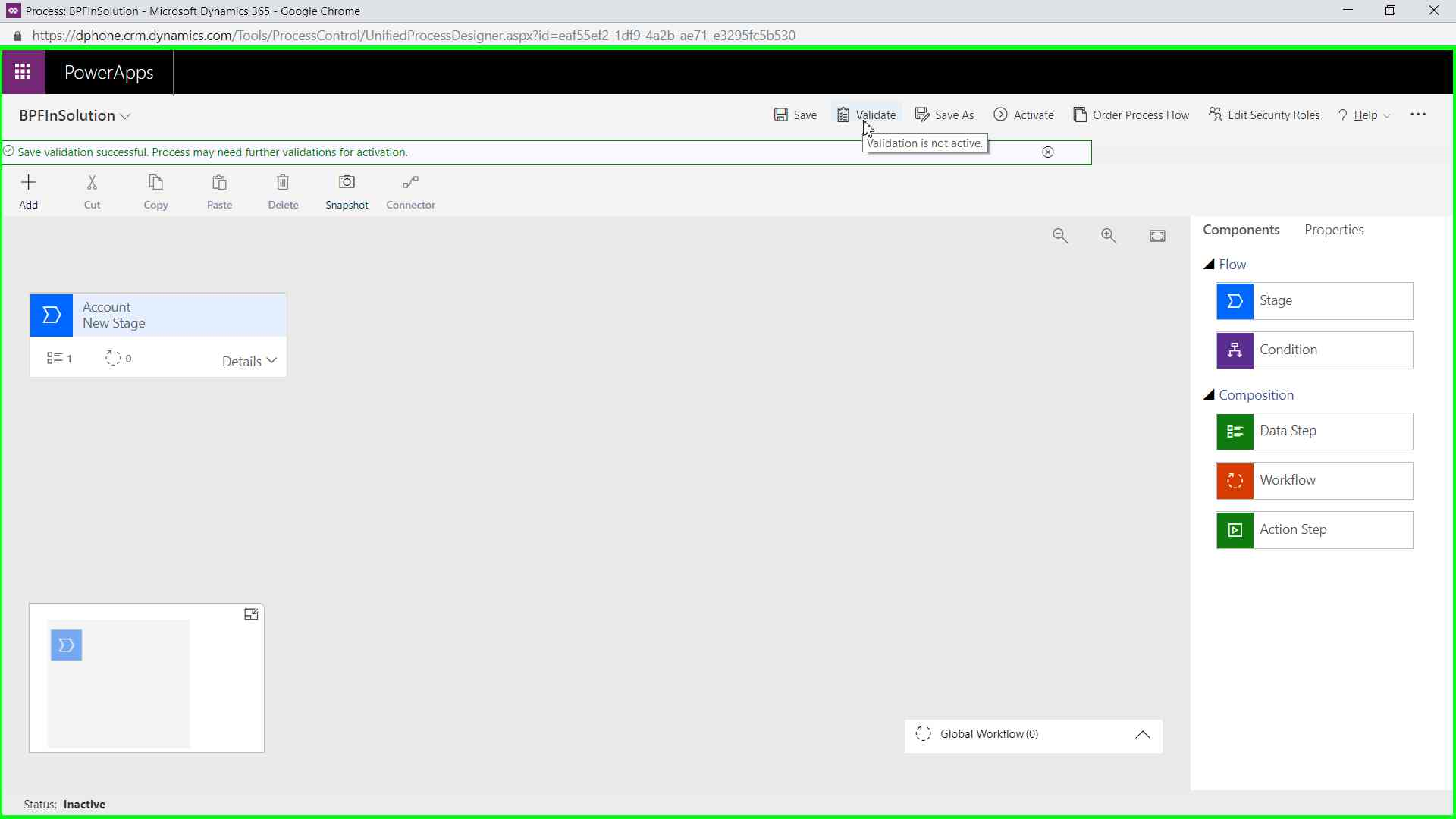
Next Option is Validate, Here the actual stages and Data Steps validation takes place.
It Checks for missing field mapping, Missing if any stage is without entity.
Validates if there is any dependency.
Validates if Workflow or action is selected for Workflow and action step.
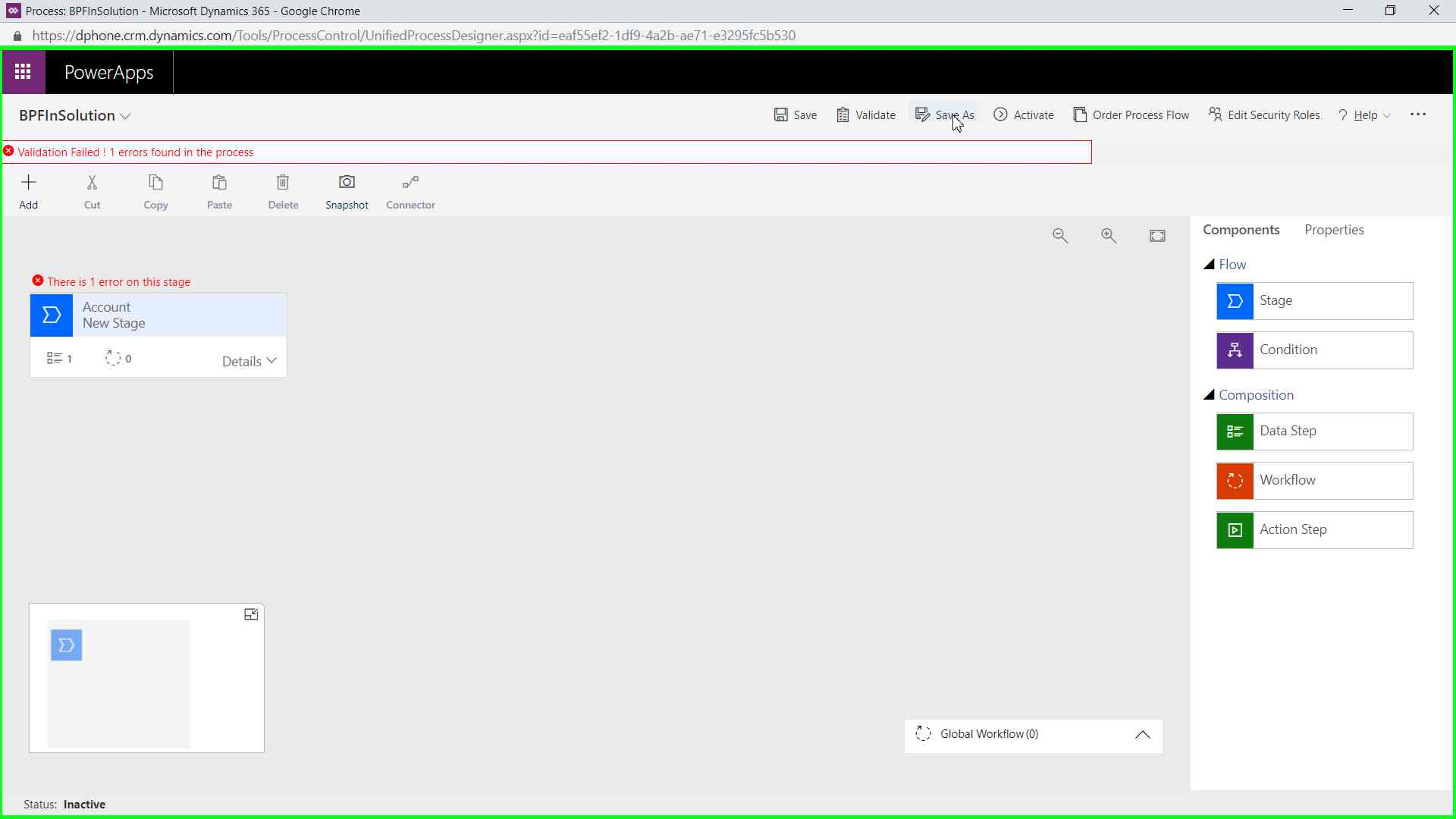
Save as, To create a duplicate Business Process Flow with different name.
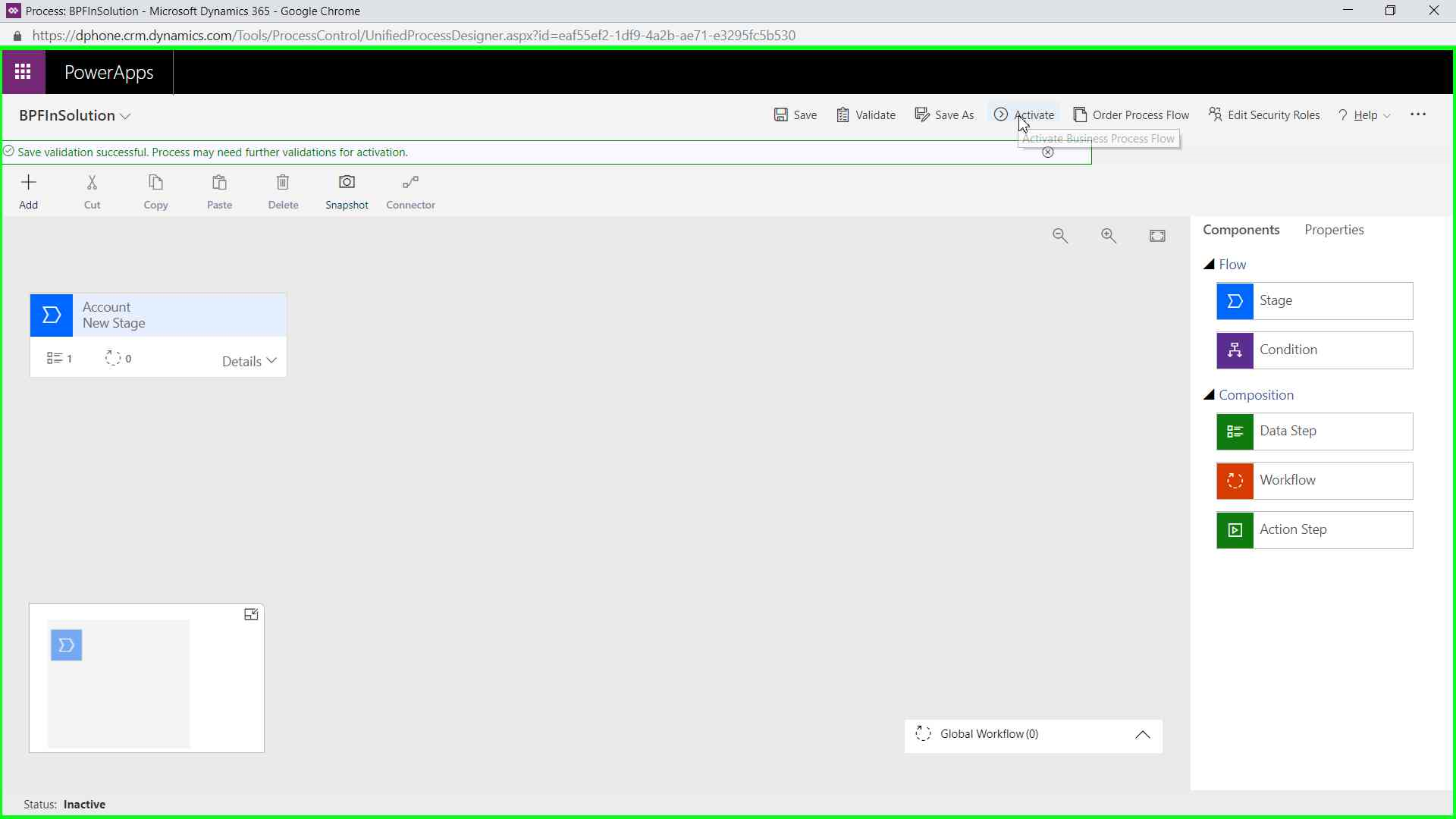
Activate or D-Activate, this options toggles based on states of Business process Flow.
This does following things
Save Business Process Flow
Validate It and throws error if any
Create Entity (Business process Flow Entity)
Create Relationship with all the entities for which stage is created.

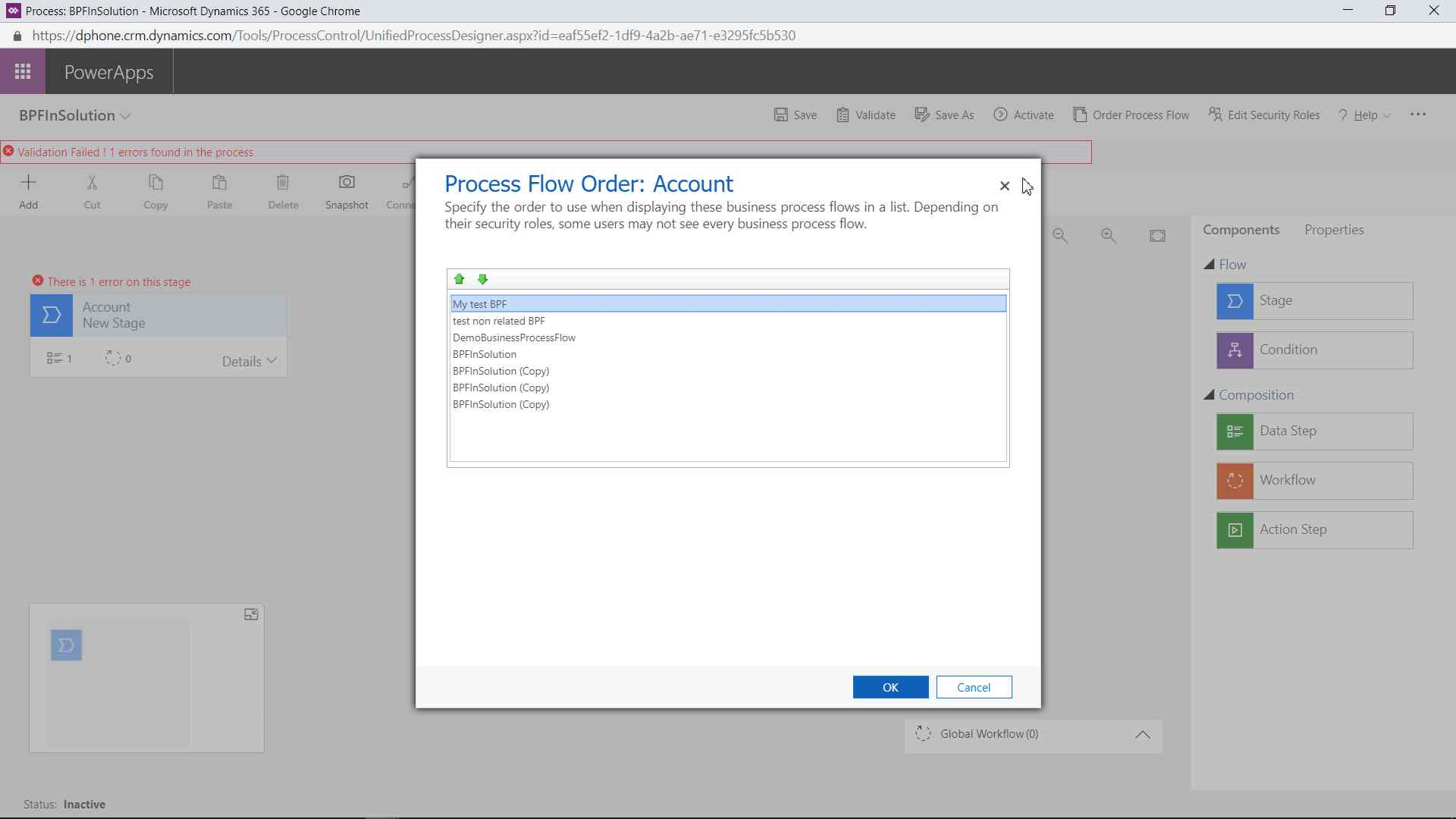
This step allow to order or sort which business process should be displayed to user, Top will be visible first.
This is used to set default BPF.
From within BPF, you can identify which security roles has access to this BPF.


This will list out all the dependency need while exporting this BPF to another solution.
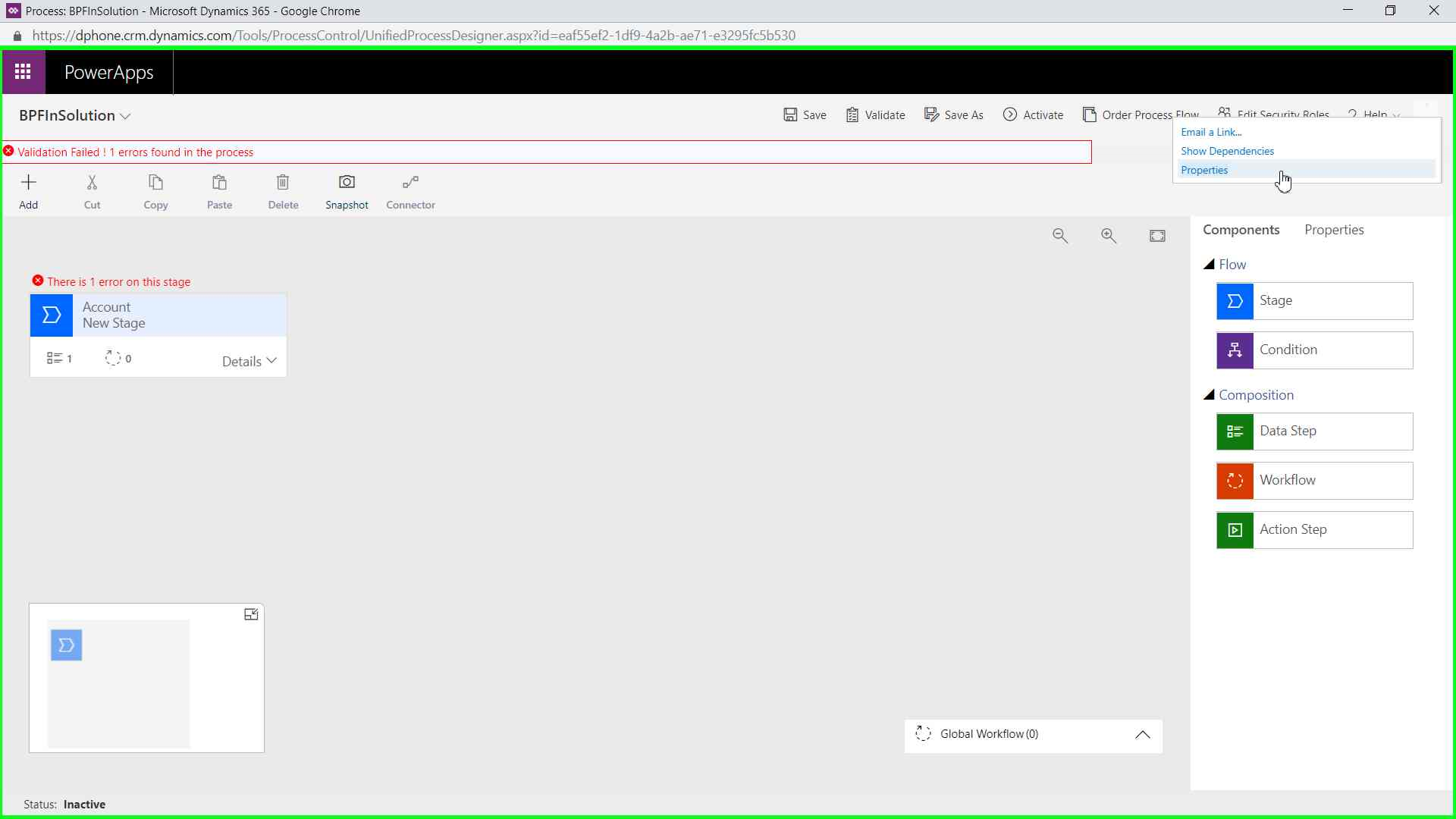
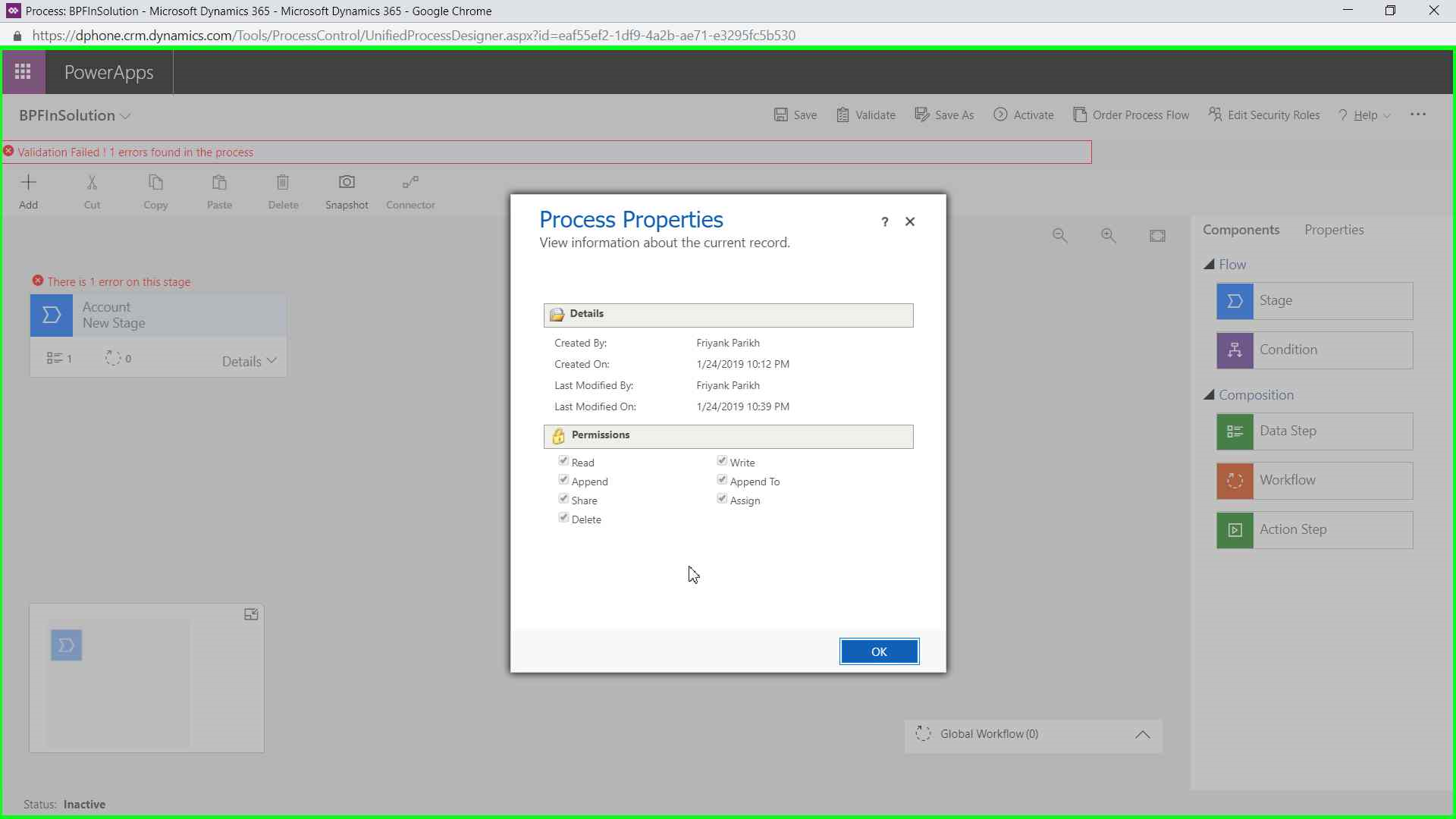
From within BPF, you can see details of BPF, like who created and when, who modified and when, what all permission you have to current BPF.

On Canvas you have options like Add to add Components like stages, Conditions, Data steps, Workflows and Action-steps.
You have Cut/Copy/Paste same like you do with text.
Remember, you cannot cut first stage of BPF and Last remaining data steps in each stage.
You have Delete option to delete any components from canvas,
Remember, you cannot Delete first stage of BPF and Last remaining data steps in each stage.
Sometime you have to see or document or just for information need to know what is this business process doing and what all stages are included.
You can take Snapshot which is an image of whole canvas.
Connector This option is only for condition component, you have options to connect another stage or disconnect the stage from condition.
You can even reconnect.
On Canvas –
You see stage, a collection of data Steps, Workflow or action step only for one Entity.
Data Step is collection of Fields or Attributes of Specified entity.

You also see Minimap, bottom left of canvas, which shows a small view of current BPF.
There is also Global Workflow option where you can add Workflow, This is called Global workflow because, you can trigger this at business process level, that means on Completion of BPF or Abundant of BPF or so.
One more way to add component on Canvas is from Component Explorer,
Same components you can add here which you can add using Add button on canvas.

On Canvas, you can Zoom in, Zoom out or Fit to window.
Also One more option is to add business rule,
From stage only you can business rule, its not specific to current business process flow, it is for that particular entity for which stage is created.
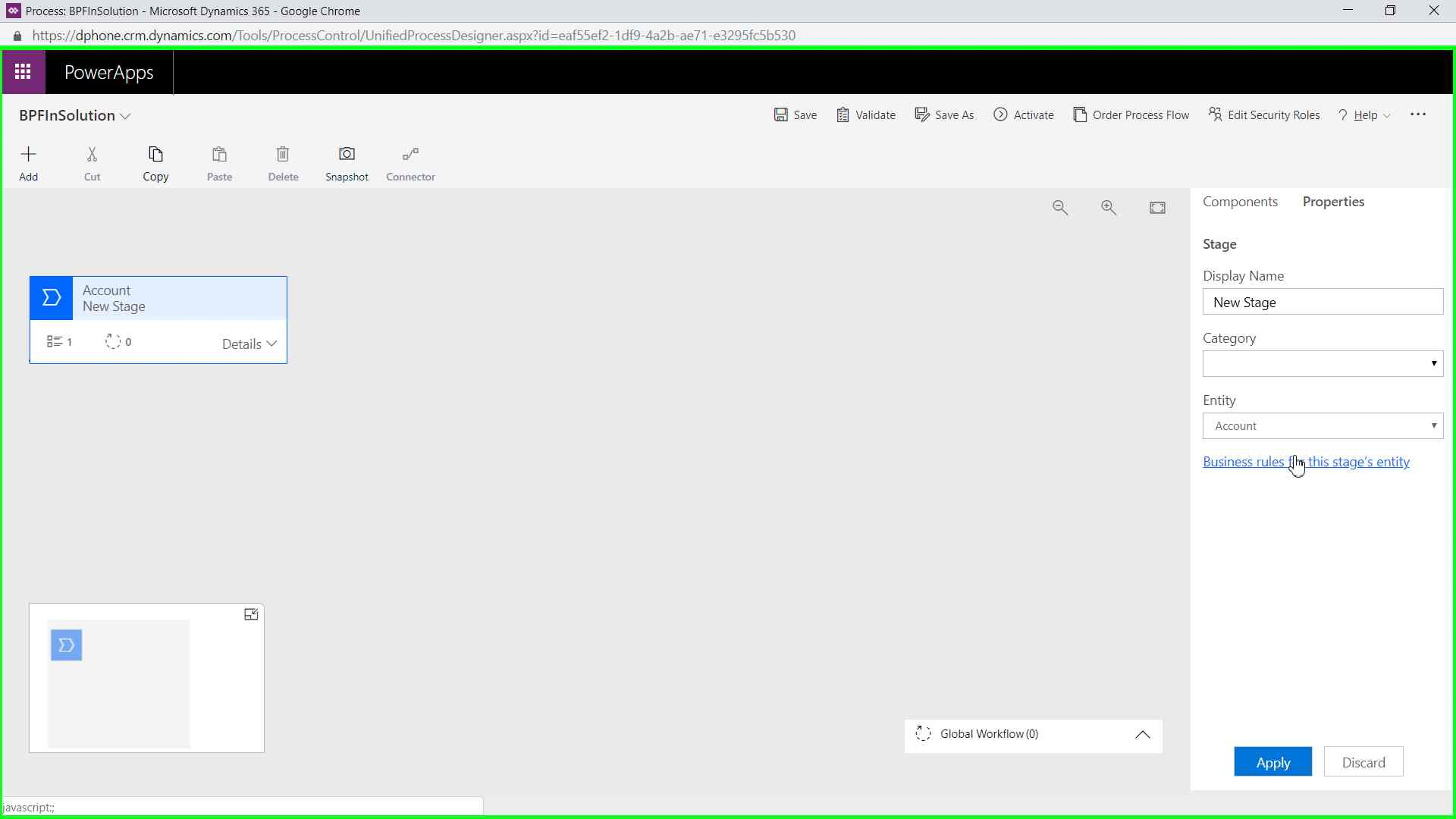

This list displays all the Business Rule for that entity and you can add more directly from Process Designer.
This are just the options available for Business process, we will discuss about many of those in upcoming Blogs.

 The Tech Burst