- Different ways of File Management in MS CRM provided OOB?
- Notes (Stores File in Azure Cloud for CRM Online)
- SharePoint
- One Note
- One Drive
- [Notes]
Default option for attaching files in Notes which is not configured at global level,
CRM > Setting > Customization > Customize The System > Entities > Select Any entity (contact) > General Tab (Communication and collaboration area Check Notes to enable and Note : Once Enable, this option cannot be disable


- [Notes]
Notes is configured for each entity when you create or modify entity.
Notes can be enable only once, and it stays forever. - [Notes]
Which files can be uploaded or attached?
File format supported to be attached are again configured in
CRM > Setting > Administration > System Setting > General Tab > Set Block file for extension.
All files can be uploaded except file format specified here.
This setting is applicable to Notes and Email attachment, if you upload file with those extension on SharePoint it will allow you to upload.
.JS is blocked

so when upload Js file in Notes
It will not allow


and if you upload same JS file in Share point it will allow

- [Notes]
What is the Max size limit for file upload?
Max file limit can also be configured in CRM > Setting > Administration > System Setting > Email Tab > Set File size limit for attachment
Default is 5120 KB its 5.12 MB
Again this numbers are only For notes attachment and email attachments
- SharePoint integration is replacement to Notes?
No, it is just an additional option to add file with more Flexibility to documents and access controls
For E.g. files stored in CRM will be access only to CRM users but if file stored in SharePoint need no access of CRM, using SharePoint credentials you can edit or view the file.
- [SharePoint]
Where to configure Document Management for Specific Entity?- CRM > Setting > Customization > Customize The System > Entities > Select Any entity (contact) > General Tab (Communication and collaboration area Check Document Management to enable and Unchecked to disable
- If this is checked, you can see this entity selected when configuring SharePoint Folders in document management setting
- How to view documents uploaded on SharePoint?
You can either view on share point site
To View in CRM check my blog here - How to Enable files to be stored in SharePoint?
CRM > Setting > Document Management > Document Management Setting >

In Wizards Select Entity for which you want to enable SharePoint Document Management Enable and Specify your SharePoint website,
Click Next
If you want records to be stored Specific to contact or account, you can specify, that your records will be based on contact or account and records will be stored specific to that contact folder.

Click Next
You will see folders are created.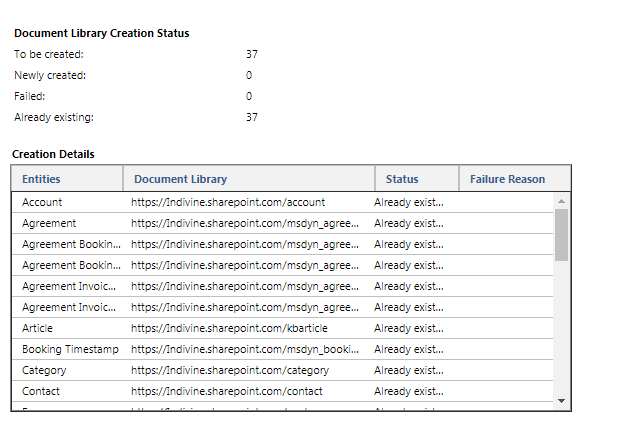
Now, Go to Account entity > go to Document (relationship) and upload or view file. - Adding multiple sites?
Yes, you can view documents from multiple share point sites in CRM but you should have access to that share point site.
CRM > Setting > Document Management > SharePoint Sites. - [OneNote]
What are Different ways to configure One Note for an Entity
1. You can go to CRM > Setting > Customization > Customize the System > Entities > Select Any Entity (Account) > General Tab > Communication and collaboration area > Check/Uncheck OneNote Integration to enable/Disable OneNote Integration
2. You can go to CRM > Setting > Document Management > OneNote Integration > Select Entities for which you want to enable OneNote. and its Done!
You can see OneNote tab in your Activity feed area of your Form.
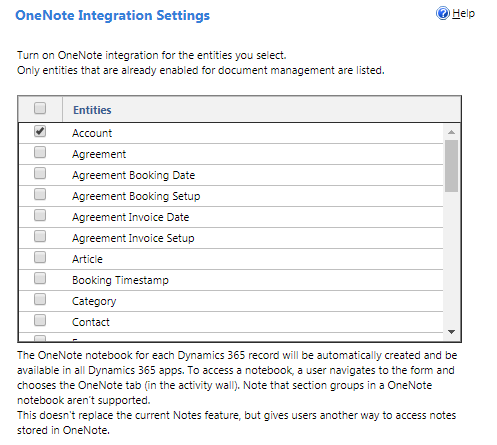

Clicking on this Tab will open OneNote Online(Note Book) where you can add your content which can be shared, you can draw and attach files within OneNote Page. - [OneDrive]
What are Different ways to configure One Drive for business for an Entity
1. OneDrive for Business is part of SharePoint Integration,
To Enable, You can go to CRM > Setting > Document Management > Enable OneDrive For business > Check the box to enable OneDrive for business. - [OneDrive] Whats the use of this?
Documents shared on SharePoint or uploaded from CRM, is shared with different Users and many can have different level of access.
User may want to keep the document with them for personal use or may be for local use, so instead of storing on Local System, user can store it on OneDrive can access whenever he/she wants. - OneDrive Documents are Private ?
Yes, they are by default private and can be shared by user to some other users.
To be Continue …

 The Tech Burst