- Important thing about Themes in CRM V 9.0 is
We have now 3 theme already provided by CRM, before V 9.0 we had only one theme which was “CRM Default Theme”
Now additionally CRM provides
“CRM Blue theme” and “CRM Orange Theme”.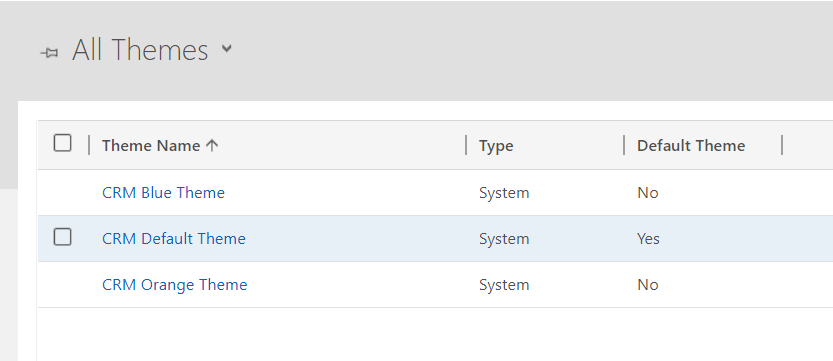
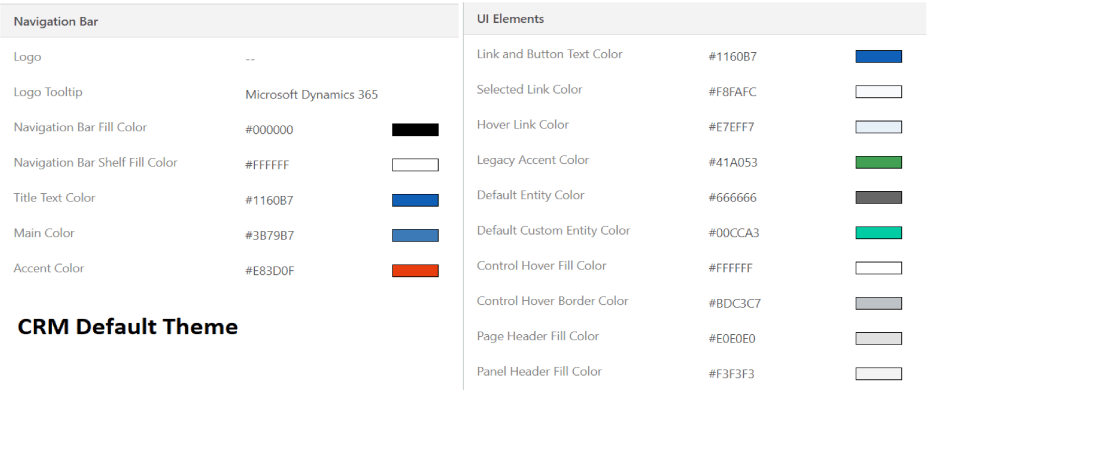
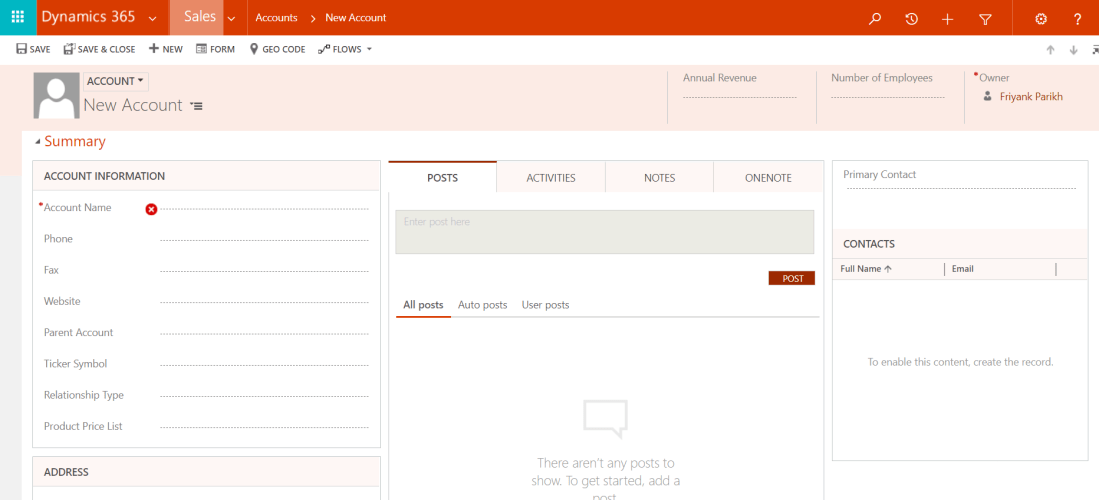
- Default CRM theme has following color combination
- CRM Blue Theme has following color combination
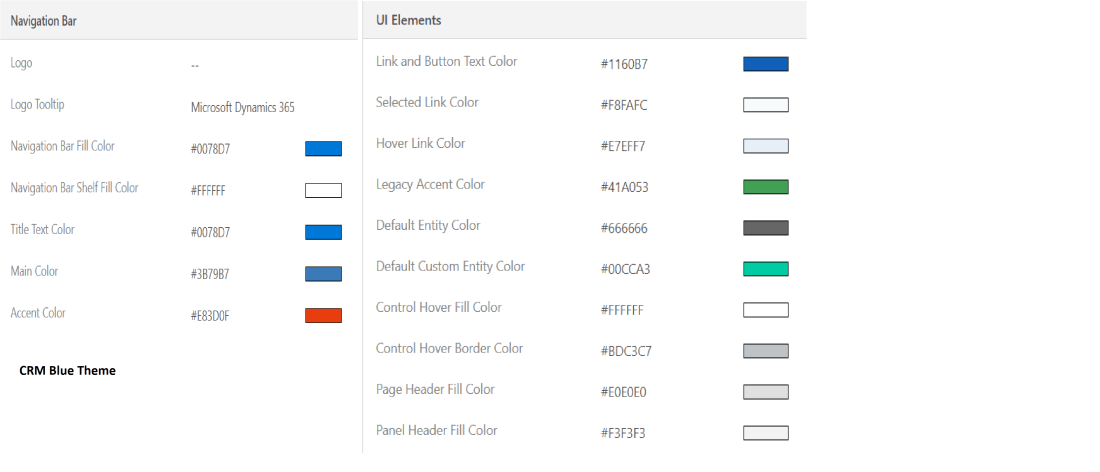
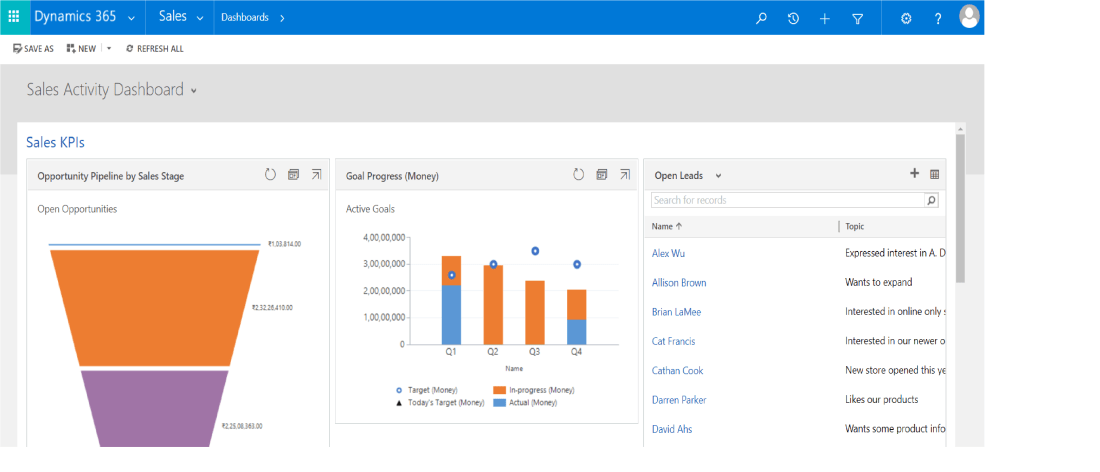
Preview :
- CRM Orange Theme has following color combination

Preview :
- Choose from multiple choice,
You can use preview button to see the demo of theme, this will not publish the theme to all users, its will be reflected only for you and you can check all the forms, views, controls, dashboards etc.
if you do not like the theme in preview mode only, you can again go to
Setting > Customization > Themes and Click Exit Preview.
If you like theme in preview mode and want to make the same theme available to all users in System, you can again go to
Setting > Customization > Themes and Click Publish Theme. - Admin has option to Create New Theme as well or admin can just clone the exiting system or custom theme and make changes on cloned theme.
- Clone option is use full when you want to just change few color or add custom logo with same color combination without changing the existing theme.
- NOTE : The theme is not solution aware. The changes made for an organization’s theme aren’t included in solutions exported from the organization. The data is stored in the theme entity that can be exported and re-imported in other environment. The imported theme must be published to take effect.
- Themes are not user specific, changes are for all or none.
- Themes are not entity specific. you can not customize theme from site map for specific entity.
- Themes Created can have custom logo as JPEG, PNG or GIF animated logo.
- Navigation Color setting includes
> Logo
> Logo tooltip which is Microsoft Dynamics 365 by default.
> Navigation bar Color/Navigation bar shelf fill color –

> Header color in V 8.2 has changed to Title Text color in V 9.0- This is the color of Tab labels in each form.
>Main color and Accent color – This is new two field introduced in V 9.0 for unified interface. - UI Elements
> Global link color in V 8.2 is changed to Link and button text color
> Select Link, hover link, Legacy Accent Color color has changes in label name.
> Default entity color and Default custom entity color.
> Control shade color changed to control hover fill color
> Control Border changed to Control Hover Border color
> Page header and panel header fill color is new introduced in V 9.0
Links to refer :
https://docs.microsoft.com/en-us/dynamics365/customer-engagement/customize/change-color-scheme-add-logo-match-organizations-brand
http://cargas.com/blog/how-to-customize-microsoft-dynamics-crm-theme/

 The Tech Burst