- Application Mode
Set whether Microsoft Dynamics 365 can be opened in a browser window without menu, navigation, and command bars. –
This option is disabled by default, for some reason, system administrator is not able to check or uncheck this option in D365.
Behavior is
if Yes is selected : In Browser for some security reason, if you try to access the site a window pops up saying that this window is trying to close and you have to acknowledge it by clicking OK in order to proceed to CRM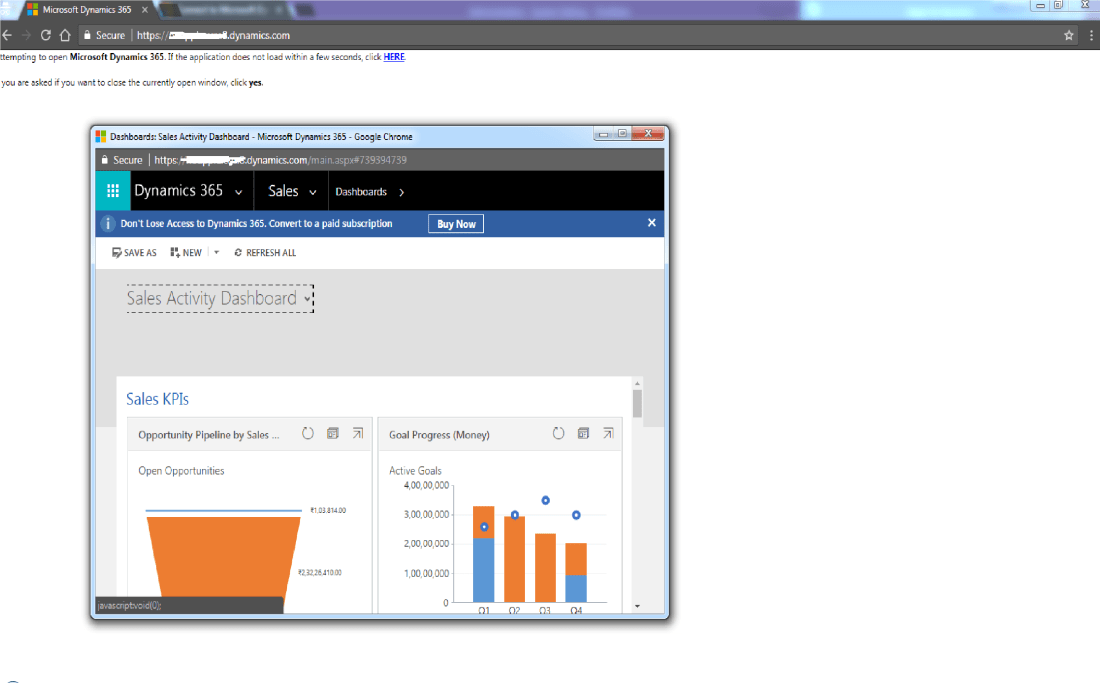
- If No is selected, CRM application works normally in browser tab with opening new window pop up.
- Plug-in and custom workflow activity tracing
This setting Decides to log or trace plugin traces or custom workflow traces.
So, Even if the code is written to trace the log using trace class and setting here is selected as Off, No Tracing will be done and nor error will be thrown.
Enable logging to plug-in trace log – Plugin trace log is an entity where Plugins and custom workflows traces can be view and logged.
By default this option is Off, and so even if you write trace.log(“log Message.”); this line will not log any trace in Plug-in trace log Entity.
If Exception is selected as Option, still trace.log(“log Message.”); will not trace any trace, but if any error occurs in plugin and custom workflow, it will automatically get logged here
If ALL is selected as option, trace.log(“log Message.”); will actually log messages in plugin trace log entity as well it will log exception message. - Enable Microsoft Flow
This is new option introduced in CRM 365 V 9.0 where you have option
By Default its Yes
When No is Selected

There is no option to run Microsoft Flow

Also in Site map ( Setting > Microsoft Flow) will be hidden.
When Yes is selected
You get prompt which ask to allow CRM data to external system
And thus you can see Flow option for each record.


 The Tech Burst