This issue comes when you have developed your Windows application before new regions were introduced.
With Microsoft.Xrm.Tooling.CrmConnectControl Dll Version 1.0 you get only this three options to connect.
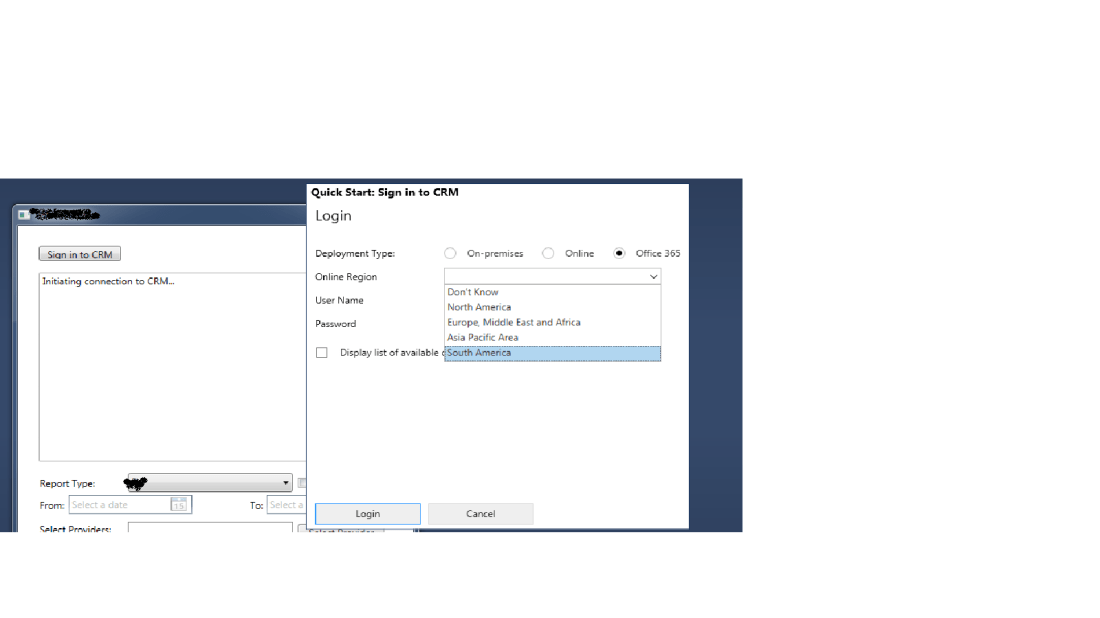
but now when you have to migrate your application or upgrade your windows application to your latest CRM instance.
First Question comes in mind is how to connect to CRM which is region which not in this option set.
For E.G. An U.K region is not here and lets say you have U.K CRM instance. how will you connect to that instance of U.K
I recently faced such an issue.
My application was developed for CRM 2011 and region was Europe. some days back we had a requirement from client that they have bought new CRM online instance 2016 and it is in region of U.K now both region have different sets of users in it.
Issue we faced was with your windows application which use to get report from CRM.
Client asked to get Same report from new instance of 2016 which is in region of UK.
When i ran my old application, i was not showing U.K as region in Online Region dropdown and selecting don’t know option dint worked.
This issue is solved in just two step.
- Update Windows application or any application which use this CrmLoginScreen.xaml file for login into CRM
Update Target Framework to greater then or equal to .Net Framework 4.5.2 - Now just update SDK dlls using Nuget
Install-Package Microsoft.CrmSdk.XrmTooling.WpfControls
This nuget command will update all the dependency required for Application to connect to current version of CRM.
It will update all the Dlls like Xrm.SDK, Deployment, tooling.connector, etc.
Now Run your Application and you will find all the regions in drop-down of online region
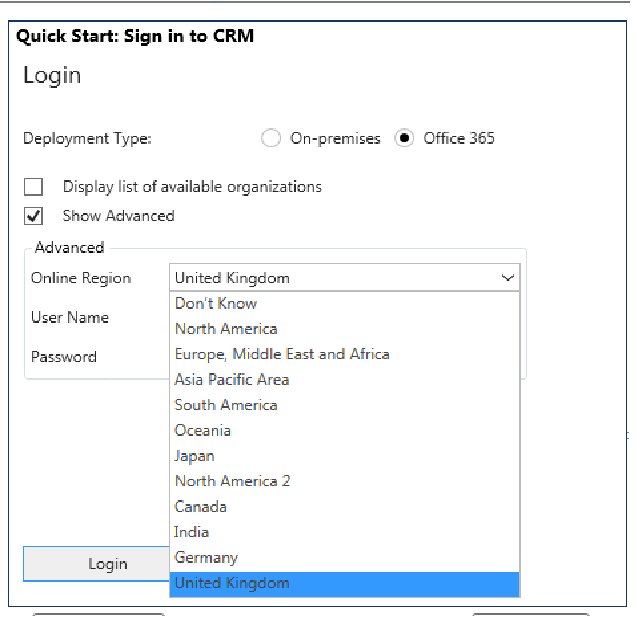
Hope this Help.

 The Tech Burst